You open the settings page of a WordPress AI chatbot plugin, and the first field says “API key.”
To fill it, you need an account with an AI provider, a card on file, and a usage dashboard you’ll never otherwise check. That’s before a single visitor gets an answer.
A WordPress AI chatbot trained on your docs doesn’t have to start this way. This guide shows how to set one up with NiroHelp, where you register your site once and never create an AI provider key. It also covers what it costs, where it fails, and when a key-based plugin is the better pick.
TL;DR
- A docs-trained WordPress AI chatbot answers visitor questions from your published help articles, not from the open web.
- Most plugins need your own OpenAI or Claude key. NiroHelp doesn’t: you register your site once, click Sync Docs, and embed the widget.
- The plugin is free, and the AI comes with paid plans, which are billed in monthly credits (one credit per AI answer) instead of a token bill.
The chatbot is only as good as your docs, so plan to test it before launch.
Want to start? Install the free NiroHelp plugin from WordPress.org and build your docs first. Add the AI when you’re ready; paid plans come with a 30-day money-back guarantee.
What does “trained on your docs” mean for a WordPress chatbot?
It means you can train a chatbot on your knowledge base without any model training. The chatbot searches your documentation for the passages most relevant to a question, then writes an answer from them. The technical name is retrieval-augmented generation (RAG). The bot doesn’t memorize your site and doesn’t learn from visitors. It looks things up in your articles each time.
Two things follow from this:
- If the answer isn’t in your docs, the bot can’t find it. Gaps in documentation become gaps in answers.
- What gets indexed matters. A bot that reads drafts or private notes can show unfinished information to customers. NiroHelp syncs your published articles.
Which AI chatbots for WordPress documentation need an API key?
Most do. Here is how the plugins and help desks we checked handle it, based on their own documentation:
| Plugin | Visitor-facing AI chatbot | Needs your own AI key? |
| BetterDocs | Yes | Yes, an OpenAI API key pasted into settings |
| Support Genix | Yes | Yes, your own OpenAI or Claude key, including in the free version |
| Fluent Support | No. AI helps agents write and summarize replies only | Yes, an OpenAI key, and it requires Fluent Support Pro |
| ThriveDesk | Yes (“NEO”) | Connects through a ThriveDesk account API key; its page doesn’t say whether you also supply a model key |
| NiroHelp | Yes | No AI-provider key. You register your site and paste in a NiroHelp site key |
Plugin features change often, so check each plugin’s current docs before you decide.
Why does a WordPress chatbot with no API key matter?
Three practical reasons:
- No AI provider account to maintain. There is no OpenAI or Anthropic key to create, rotate, or protect, and no provider billing page to check.
- A fixed allowance instead of variable usage. Key-based setups bill per token. A PureThemes case study on a different plugin (PurioChat) reported about $1 across 560 messages. That is cheap, but you find out the real number after the fact.
- One less failure point. When a pasted key expires or hits a limit, the chatbot goes quiet, and a visitor sees the result before you do.
You are getting AI for free with a limit of credits. You pay NiroHelp a plan price and get a monthly credit allowance.
If you want to choose the model yourself or run your own provider contract, a key-based plugin gives you that control.
How do you set up a WordPress AI chatbot with NiroHelp?
Step 1: Install NiroHelp and publish your docs
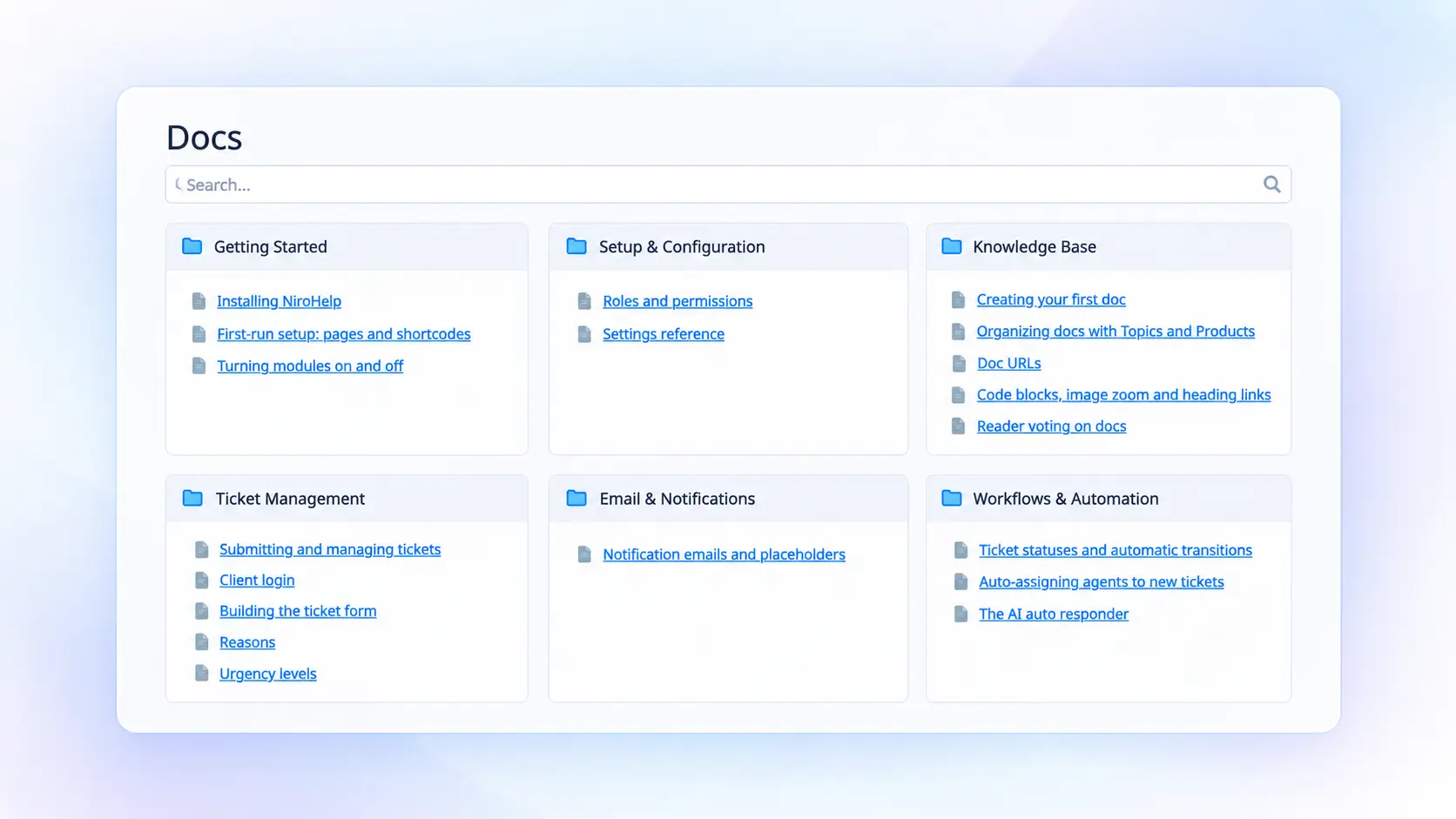
Install NiroHelp from WordPress.org (WordPress 6.0+ and PHP 7.4+). Add your help articles to the knowledge base and publish them. Start with the ten questions your support inbox gets most. The knowledge base feature page and the NiroHelp docs cover the details.
Step 2: Register your site with NiroHelp Cloud
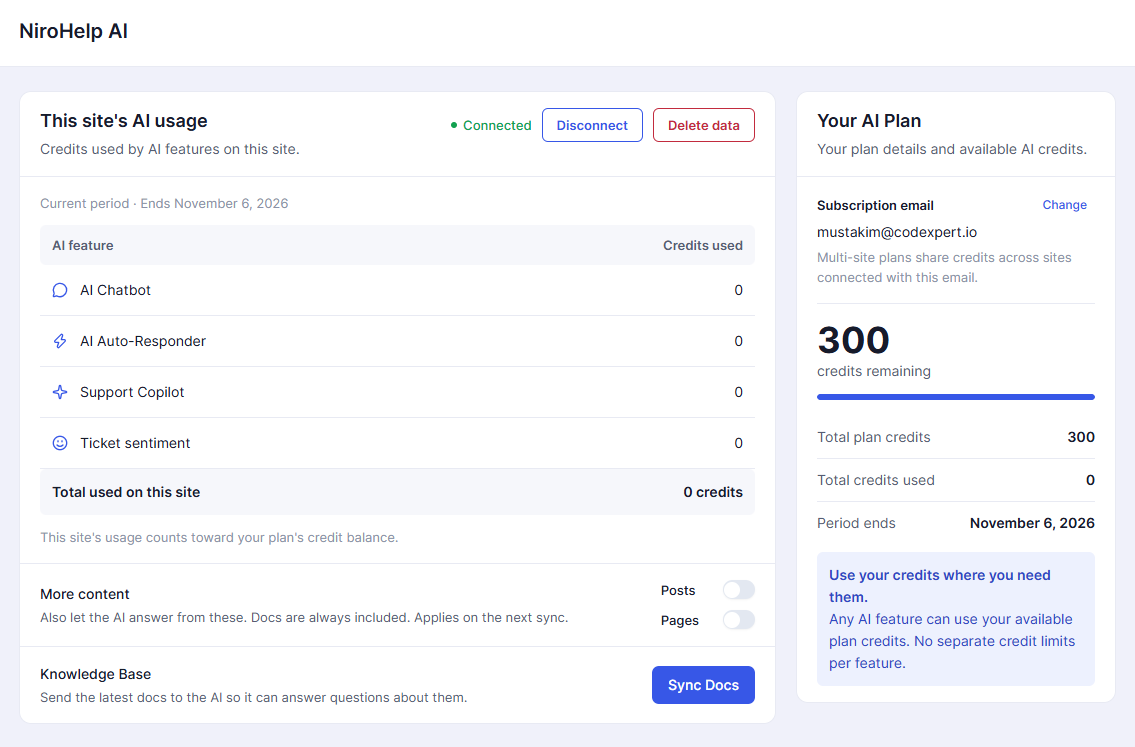
The plugin’s core features work on their own. The AI needs a one-time registration. Open NiroHelp → AI, enter your name and email, and paste in the key NiroHelp sends back.
This is a NiroHelp site key. It is not an OpenAI or Anthropic key, and you never create an AI-provider account. You do this once. AI answers are included in paid plans.
Step 3: Click Sync Docs
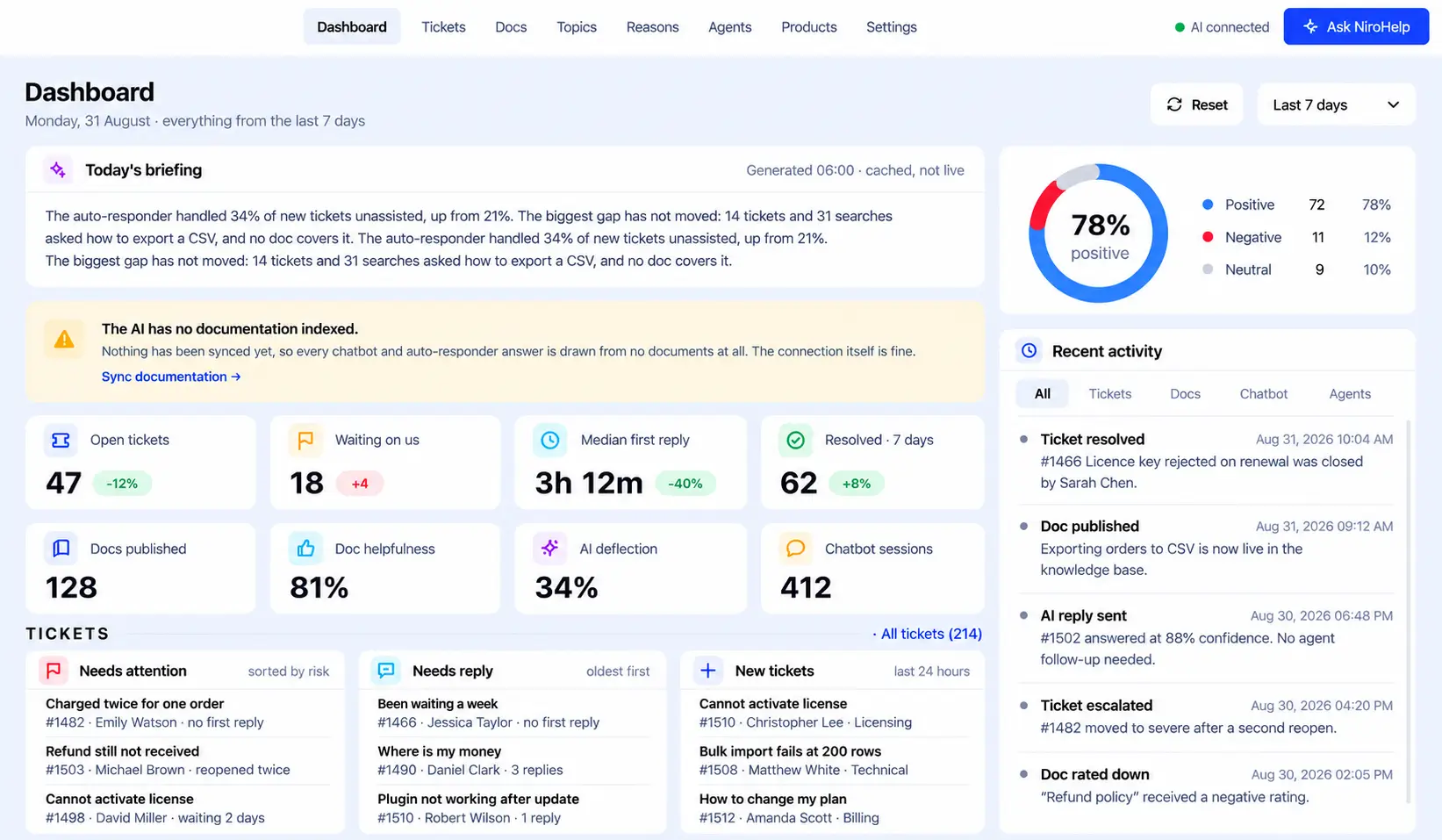
On the same screen, click Sync Docs. One click pushes your published help articles into the AI index so the chatbot can search them. Sync again after you edit or publish a doc, so answers match your latest content.
Step 4: Style and embed the chat widget
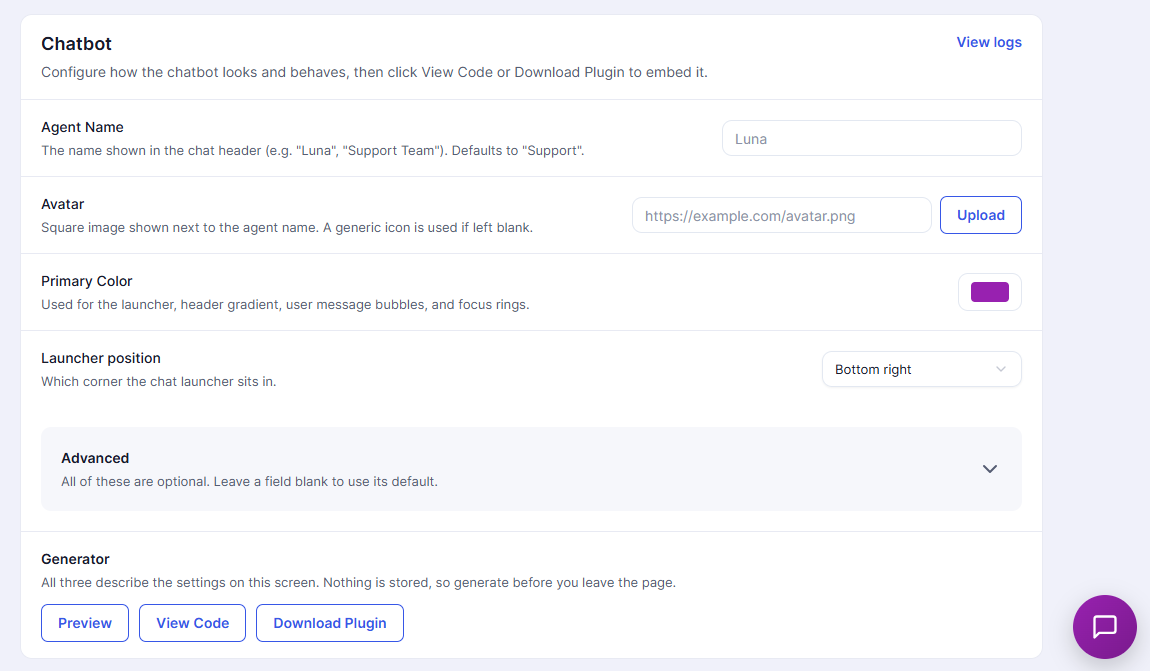
Set the agent name, colors, and appearance, and check them in the dashboard preview. Then copy the generated script tag, which needs only your site key, or download the packaged plugin. See the AI chatbot feature page for the options.
Step 5: Test it with real questions before launch
Pull ten real questions from your support inbox and ask the chatbot each one. Mark every vague or wrong answer. In most cases the fix is a missing doc or a badly titled one, not a chatbot setting. Fix the doc, sync again, ask again.
What happens when the chatbot can’t answer?
AI can’t answer every customer question, and that’s where a good support system needs a fallback.
With NiroHelp, the AI doesn’t have to guess when it can’t find a reliable answer in your support content. If the response doesn’t meet the set confidence level, the conversation can be passed to a human support agent for further assistance.
This creates a practical balance between automation and human support. NiroHelp can handle routine questions automatically, while more complex or unclear issues can still be handled by your support team.
How does the AI auto-responder handle tickets?
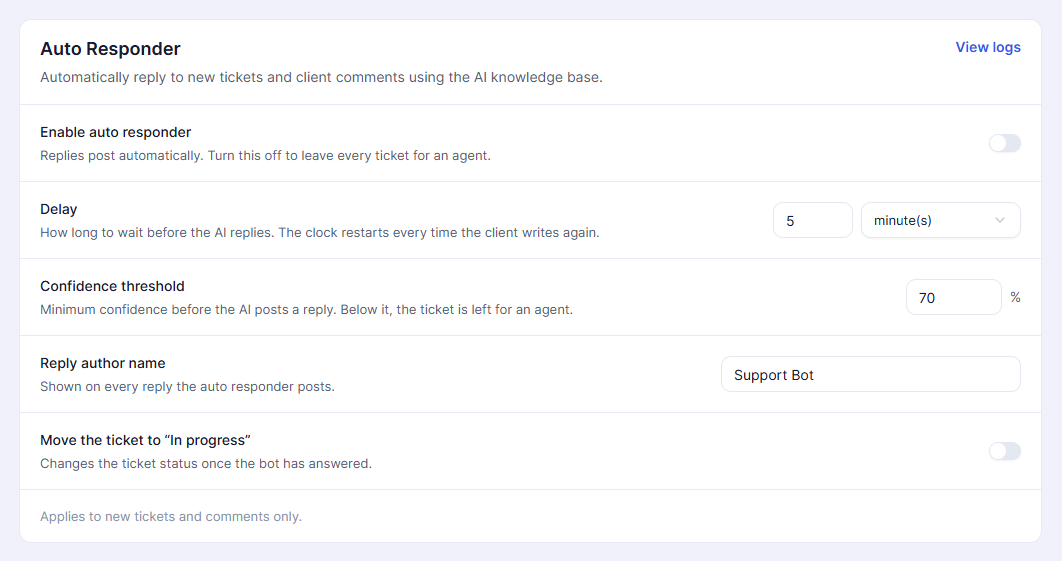
This is a separate feature from the chat widget. The AI auto-responder answers incoming tickets as a normal reply in the existing ticket, under an author name you choose. It doesn’t open a second ticket.
You set a confidence threshold from 0 to 100%. NiroHelp’s docs show 70% as an example. Below the threshold, the AI stays silent, and the ticket waits for an agent. Raise it if wrong answers worry you more than slow ones.
What does a WordPress AI chatbot with no API key cost?
The plugin is free forever: knowledge base, tickets, and dashboard, with no account, card, or trial clock. The AI comes with the paid plans.
NiroHelp counts one credit per AI answer.
- A chatbot reply,
- An auto-responder ticket reply, or
- A copilot question.
Credits renew monthly. If you run out, the AI pauses while docs, tickets, and email keep working.
| Plan | Monthly | Yearly | Lifetime* | Sites | AI credits / month |
| Free | $0 | $0 | n/a | 1 | 300 |
| Starter | $9.99 | $79.99 | $199.99 | 1 | 1,000 |
| Growth | $29.99 | $239.99 | $599.99 | 5 | 6,000 |
| Agency | $49.99 | $399.99 | $999.99 | 10 | 15,000 |
*Lifetime plans refill the monthly credits for three years, then the AI pauses and the rest keeps working. Paid plans come with a 30-day money-back guarantee.
To estimate your own use, multiply total chatbot conversations per month by answers per conversation. A small site with a few hundred chatbot answers a month fits within Starter’s 1,000 credits.
Start here: Install the free plugin, build and test your docs, then pick a plan on the pricing page when you’re ready to turn the AI on.
How accurate will the answers be?
Accurate where your docs are clear, weaker where they aren’t. We haven’t published a NiroHelp accuracy benchmark.
For scale, the same PureThemes case study, on a different plugin and a different site, reported an 80% resolution rate for simple questions and 30% for complex ones. Treat that as an illustration of the pattern, not a promise: lookup questions go well; unusual edge cases don’t.
Three habits improve any docs-trained chatbot:
- Title docs the way customers phrase problems. “Why isn’t my invoice email sending?” beats “Email notification settings.”
- Sync after every edit. A stale index answers with last month’s instructions.
- Review unanswered questions weekly. Each one is a doc you haven’t written yet.
Is my visitor data private?
Because the AI runs through NiroHelp Cloud, your published docs and the questions asked do travel to it to produce answers. If you handle regulated data, read the NiroSuite privacy policy before turning on any cloud AI.
Who should and shouldn’t use a no-API-key chatbot?
It suits you if you want a working chatbot this week, you don’t want an AI provider account, and a monthly allowance fits your budget.
It suits you less if you need to pick a specific model, you already have an enterprise AI contract, or your rules require all processing on your own servers. A bring-your-own-key plugin fits those cases better.
Final Words
A WordPress AI chatbot trained on your docs can run without an AI-provider key or a developer. Write clear docs, register once, sync, embed, and test with real questions. Answer quality will come from your documentation, so spend your setup time there.
Ready to try it? Install the free NiroHelp plugin from WordPress.org and start with your docs. See pricing when you want the AI on.
Frequently Asked Questions
Is NiroHelp Free?
Yes. The free plugin includes documentation, ticketing, migration tools, and unlimited agents and tickets. Paid plans add AI features and email piping.
Do I Need an OpenAI API Key?
No. Paid plans include AI credits, so you do not need a separate model-provider account or API key.
Can I Import My Existing Support Content?
Yes. NiroHelp supports seven WordPress documentation and support plugins. The records available for import depend on the source plugin.
Does NiroHelp Replace Human Agents?
No. It handles suitable questions using your documentation, while your team investigates complex issues and cases requiring judgment. It actually help reducing time and as well as the cost.
What Happens When AI Cannot Answer a Ticket?
If the available information does not meet your confidence threshold, the auto-responder stays silent and leaves the ticket for an agent.