If you’re looking to move from Awesome Support, you probably have a few things you’d like to change.
Maybe you’re managing several add-ons, reviewing renewal costs, or looking for a way to bring documentation and tickets together.
But you also have a support desk full of conversations your team still needs. Before switching, you’ll want to know what happens to those tickets – and how much work the move will involve.
For your relief, NiroHelp has a built-in importer for Awesome Support. In this guide, we’ll go through what it brings across, what needs separate attention, and how to get the new portal ready for customers.
Why You Might Be Ready to Move From Awesome Support
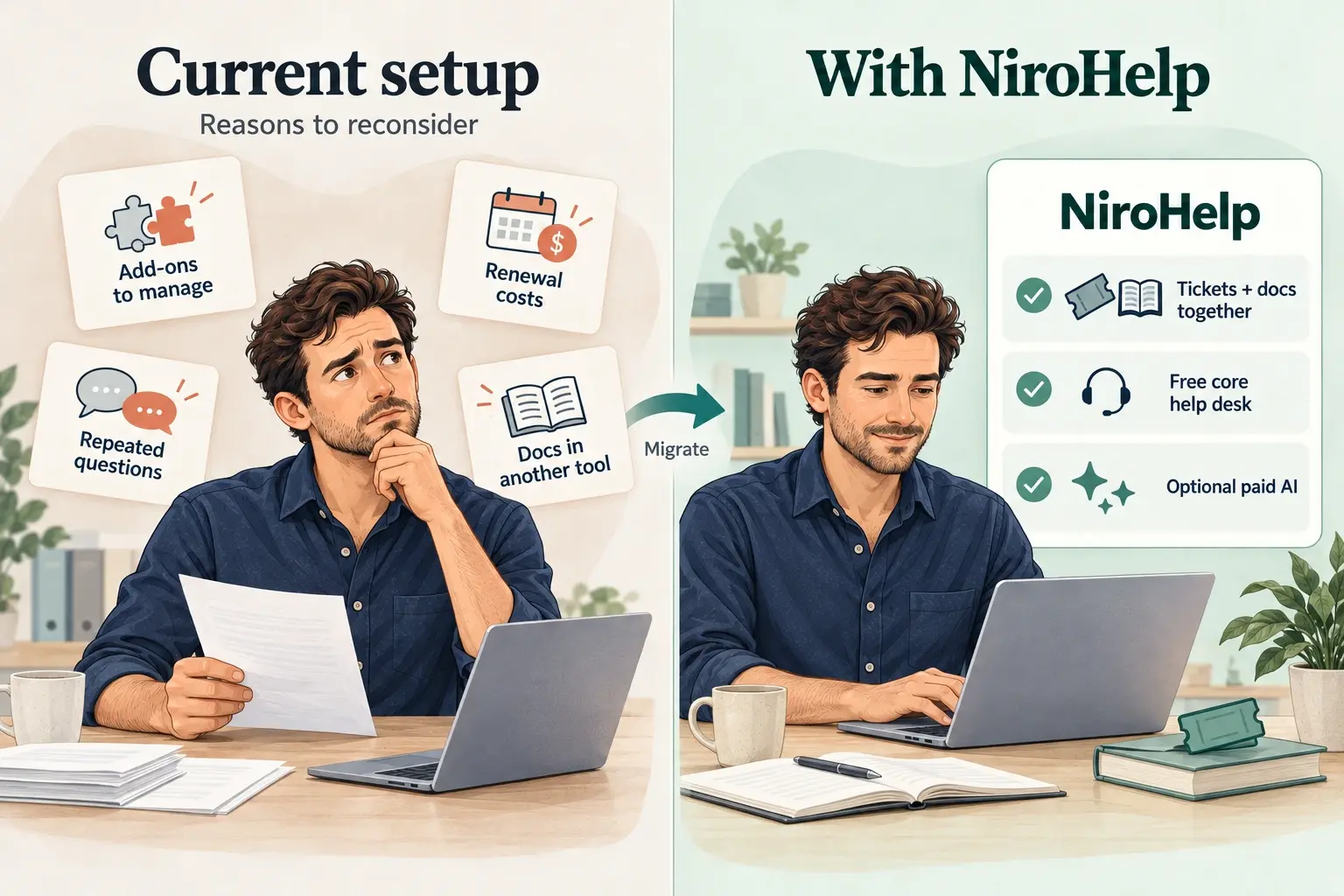
Awesome Support’s extension model lets you build around your needs.
Add-ons and bundles include email support, private notes, FAQs, and canned responses.
For teams using several extensions, that can mean more pieces to configure and renew.
Three reasons may make you reconsider your setup:
- You want fewer pieces to manage. Bringing tickets and documentation together could simplify your daily work.
- You’re reviewing recurring costs. Compare the extensions you pay for with the features you actually use.
- [Important] You want help articles to do more. Perhaps customers need better self-service, or you want to explore AI answers based on your documentation.
NiroHelp’s free plugin includes ticketing, a knowledge base, notifications, and migration, with unlimited agents, tickets, and docs. Its optional AI requires a paid plan. NiroHelp features and plans
Write down what you want the move to improve. That gives you something concrete to check during the trial, beyond whether the import finishes.
How Does the Migration Work?
Keep Awesome Support active, install NiroHelp, and open NiroHelp → Settings → Migration. Select Migrate beside Awesome Support, then verify the imported records before updating your support links. Official migration guide
That’s the basic route. The preparation and checks below help you decide when the new desk is ready for customers.
What Transfers From Awesome Support to NiroHelp?
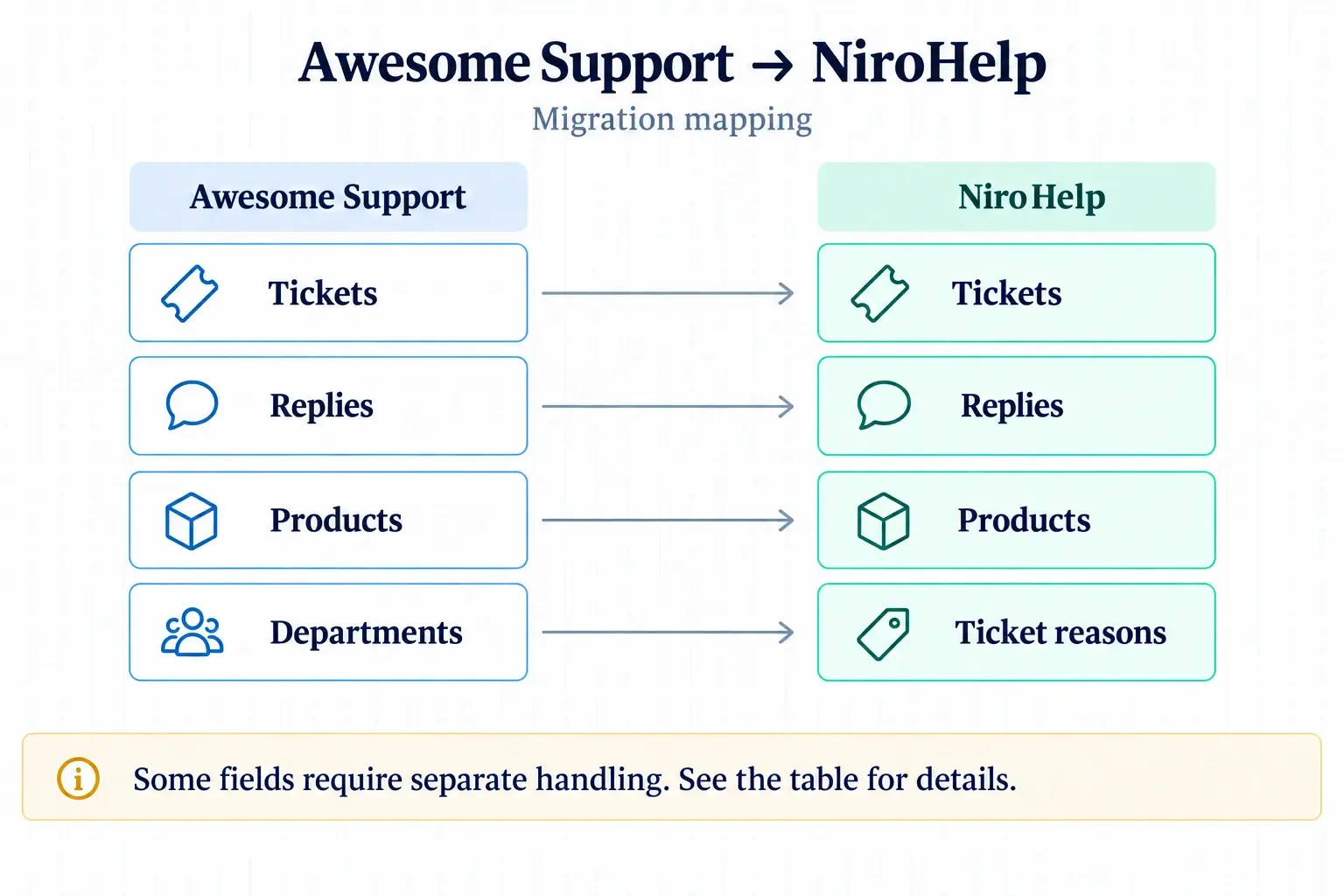
The importer brings across the main ticket conversations. Some supporting information stays behind.
| Data in Awesome Support | Migration result |
| Tickets | Imported |
| Replies | Imported with authors and dates |
| Attachments | Reattached to imported tickets |
| Primary assigned agent | Preserved |
| Products | Become NiroHelp products |
| Departments | Become ticket reasons |
| Priorities | Not imported |
| Private notes and ticket history | Not imported |
| Secondary assignees | Not imported |
| Custom fields and add-on settings | Not imported |
Existing customers keep their WordPress accounts. Review imported statuses, as conversations can arrive marked as waiting on your team. Migration mapping
If your reason for switching is to simplify the setup, this is a useful moment to decide what deserves to come forward.
An unused custom field can probably stay in the archive. An internal note recording a refund commitment needs to remain accessible to the person handling that request.
Focus first on what agents need to answer the next customer message.
Before You Start: Review the Setup You’re Replacing
A short preparation checklist will make the results much easier to assess.
Back up your site
Create a current backup of your WordPress database and files, and confirm how to restore it.
Note the backup time. If support conversations continue afterward, you’ll need to account for those newer messages if you restore the site.
Try the migration on staging
Use a staging copy for the first import if you have one.
It gives you room to inspect conversations, open attachments, and test customer access before changing the live portal. Check that test emails stay away from real customers.
Use this trial to evaluate the reasons you’re moving, too. Can agents find what they need easily? Does the new arrangement reduce the work you hoped it would?
List your essential features
Record your active extensions and the job each one performs. Include:
- Email routing and notifications.
- Private notes and essential custom fields.
- Assignment rules and agent responsibilities.
- Documentation and saved responses.
- Customer-facing forms and portal links.
- Integrations your team uses.
Mark each item as something to recreate, replace, or retire.
If reducing costs is part of your decision, compare the price of the complete replacement setup including any paid features you intend to use with your current renewals.
Choose a handover time
Agree on when agents will stop replying in Awesome Support and start using NiroHelp.
Keep a list of conversations that receive new messages during the move. A clear handover prevents the team from accidentally working from two different versions of the same request.
How to Migrate Awesome Support Tickets to NiroHelp
Work through these steps on staging first where possible. Keep the AI auto-responder off during migration. Migration preparation
Step 1: Install NiroHelp
In your WordPress dashboard:
- Open Plugins → Add New Plugin.
- Search for NiroHelp.
- Select Install Now, then Activate.
After activation, locate the Docs, My Tickets, and Submit a Ticket pages that NiroHelp creates or reuses. Installation instructions
Spend a few minutes in the ticket area before importing. Identify where agents will handle requests and which pages customers will use.
Step 2: Open the Migration tab
Go to NiroHelp → Settings → Migration and find Awesome Support.
Confirm that you’re on the intended site and have selected the correct source.
If Awesome Support isn’t detected, check that it’s active. If detection still fails, record the plugin versions and any visible error before contacting support.
Step 3: Run the import
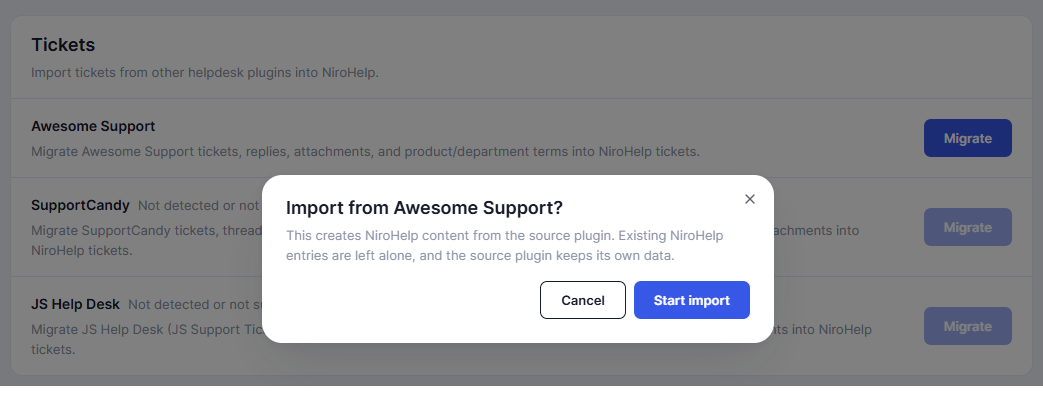
Select Migrate beside Awesome Support.
NiroHelp processes the import in background batches. Wait for completion before checking the results. Import process
While it runs, track any new activity in the old desk. Those conversations will need attention before agents begin answering from the imported history.
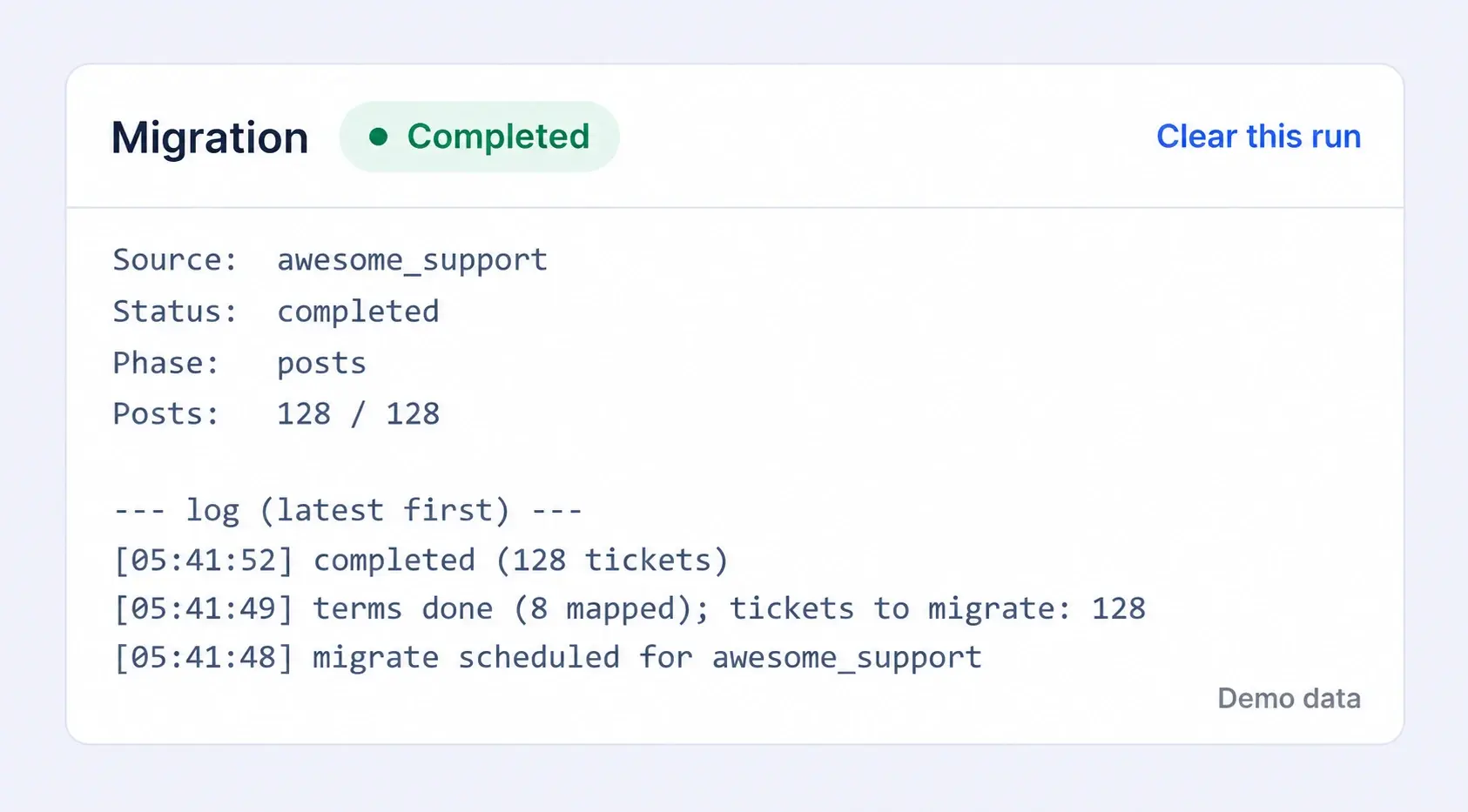
Step 4: Open familiar tickets
Start with a few tickets you recognize:
- A recent request waiting for an agent.
- A resolved conversation with several replies.
- A ticket containing attachments.
- Requests handled by different agents.
- A conversation that depends on an internal note or custom field.
As you read, ask whether someone could continue helping the customer using the information available.
That question tends to reveal more than a quick glance at the ticket list.
Verify the Migration Before Switching
The import brings the records across. These checks tell you whether your team can work with them.
1. Compare ticket counts
Use equivalent date ranges and status filters in both systems.
If the totals differ, investigate what each view includes. Record the explanation for any difference you accept.
2. Read complete conversations
Compare sample tickets with their source records. Check the opening message, reply order, authors, and dates.
Prioritize unresolved requests. Missing the latest troubleshooting step in an active conversation can lead an agent to suggest something the customer has already tried.
3. Open the attachments
Click the files rather than checking only that filenames appear.
Include a few file types from your support history. The screenshot or document should open when the agent needs it.
4. Ask agents to review their queues
Have each agent check the requests they expect to handle next.
Confirm ownership, status, and the next action. Bring forward any essential context stored in excluded fields or notes.
This also tests your simplification goal. If agents still need several workarounds to do routine work, resolve those before making the new desk the main one.
5. Test the customer journey
Using an authorized test account:
- Sign in.
- Find an existing ticket.
- Open the conversation.
- Add a reply.
- Submit a new request.
Check the agent’s side afterward. The message should reach the expected place, and the customer should be able to access only their own tickets.
6. Check notifications
Send test messages between accounts you control.
Inspect delivery, wording, branding, and links. Follow each link to confirm it opens the correct page or conversation.
Pay particular attention to any email workflow you previously handled through an extension. Its replacement needs to work before customers rely on it.
Update Your Customer Support Links
Once verification passes, change the routes customers use to reach support.
Review your navigation, footer, contact page, account area, help articles, automated emails, and saved agent replies.
Saved replies are easy to overlook. An agent can be answering from the new desk while an old template still sends the customer elsewhere.
Test from the public website, including on mobile. Start where a customer would look for help and follow the route through to submitting a request.
Tell the team when NiroHelp becomes the main place for replies, and assign someone to monitor incoming activity during the handover.
Turn Repeated Questions Into Documentation
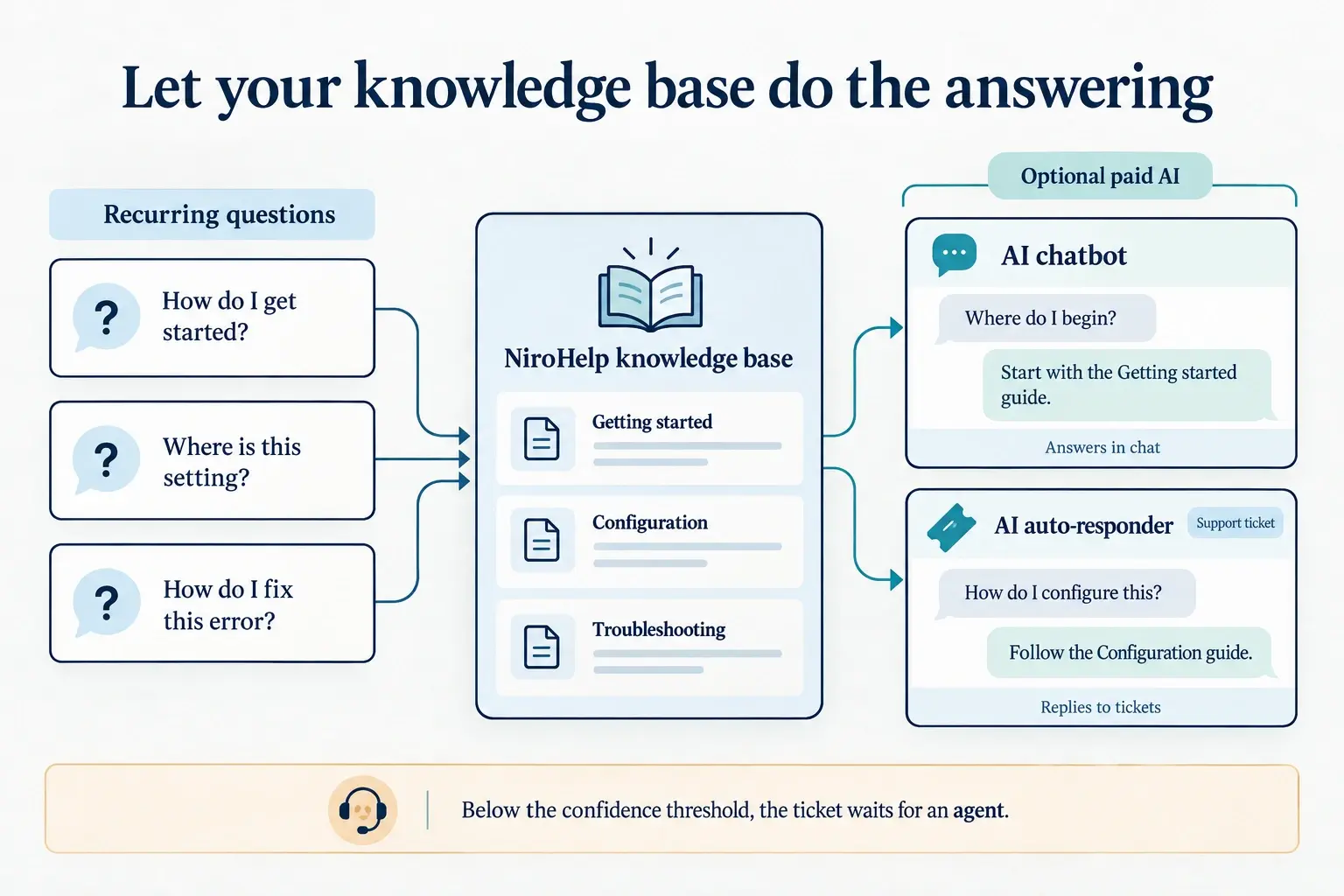
If better self-service helped motivate the switch, make time for it after the ticket workflow settles.
Look through the imported history for questions agents keep answering. Start with a small set:
| Repeated question | Useful help article |
| “How do I get started?” | Setup walkthrough |
| “Where is this setting?” | Configuration guide |
| “Why am I seeing this error?” | Troubleshooting steps |
| “How do I access my account?” | Account access guide |
Write the article an agent would feel comfortable sharing without adding a long explanation.
Try it against a real customer question. If the article skips the exact step people struggle with, fix that before moving on to another topic.
A smaller collection of useful answers is a better starting point than a large library customers can’t navigate.
Introduce AI After the Documentation Is Ready
If AI is part of your reason for moving, give it a clear job to start with.
Choose a handful of recurring questions and review how the proposed workflow answers them. Check accuracy, missing details, and when the customer should reach a person.
Compare the result with your current routine. Does it help agents answer faster? Does it give customers a useful next step?
Use that evidence to decide where to expand. The migration itself doesn’t establish that every support question is ready for automation.
Take Your Support Forward With NiroHelp
If you’re ready to spend less time coordinating your support setup and more time helping customers, NiroHelp is worth trying. Bringing tickets and documentation together gives your team a place to build on, with optional AI when you’re ready to explore it.
Start with a trial migration. Review a few familiar conversations, let agents check their queues, and test the customer portal. You’ll get a clearer picture of how NiroHelp fits your daily work before making the switch.
Install NiroHelp for free and follow the Awesome Support migration guide to get started.
Frequently Asked Questions
Is the migration free?
Yes. NiroHelp lists migration, ticketing, and the knowledge base as free features. Optional AI requires a paid plan. Plan details
Can a repeat import collect newer replies?
A repeat import skips previously imported tickets and does not collect later Awesome Support replies on those tickets. Track conversations that change during the transition. Repeat-import behavior
Does importing delete the old tickets?
Tickets are copied; cleanup is separate. Attachment associations change during import. Source-data handling
How long should you allow?
Allow time for preparation, importing, verification, and updating the portal. Use a staging trial to estimate the schedule for your ticket history and workflow.
When should you use Clean?
Only after verification and a backup. Clean permanently deletes migrated source data and has no undo. Cleanup details