Picture a Monday morning. Twenty-three support tickets are waiting, and nine ask questions your documentation already answers. Your team knows where to find those answers, but customers are still waiting for a reply.
That’s where AI auto-reply for WordPress support tickets can help. Instead of answering the same questions repeatedly, AI can use your knowledge base to respond automatically, leaving your team to handle issues that need a person.
But not every AI reply tool works the same way. Some send acknowledgements, others prepare drafts for agents, and a few can send answers without human approval.
In this guide, we’ll explain the differences, show you how to set up confidence-based auto-replies in WordPress, compare available tools, and help you decide which tickets should never be automated.
What Does AI Auto-Reply Mean for WordPress Support Tickets?
AI auto-reply for WordPress support tickets uses automation or artificial intelligence to respond to customer questions without requiring an agent to write every message.
However, an automatic acknowledgement is different from an AI-generated answer. There are three common approaches:
- Automatic acknowledgement: Sends a confirmation such as “We’ve received your ticket.” It reassures customers but doesn’t answer their questions.
- AI-generated draft: AI prepares a response based on available support information. An agent reviews and sends it.
- Autonomous AI reply: AI searches the available documentation and sends an answer without waiting for agent approval, provided the required conditions are met.
The third approach can reduce repetitive support work, but it also requires accurate documentation and appropriate safeguards.
How WordPress plugins compare
Several WordPress support plugins offer AI capabilities, although they handle automated responses differently.
Here’s a comparison of their publicly documented features as of October 28, 2026.
| Plugin | AI capabilities | Autonomous ticket replies | AI setup |
| NiroHelp | AI auto-responder, chatbot, and AI copilot | Yes, based on documentation match and safeguards | Included AI service; no separate API key |
| Fluent Support | AI drafts, ticket summaries, sentiment analysis, and response refinement | Agent-reviewed replies in its documented workflow | OpenAI account |
| ReplyPlex | AI drafts and Autopilot | Yes, through Autopilot | Hosted ReplyPlex service |
| SupportCandy | AI chatbot, summaries, and reply assistance | Autonomous ticket replies not clearly documented | Depends on configuration |
Fluent Support is useful for teams that want AI assistance while keeping agents responsible for sending replies.
ReplyPlex offers an Autopilot mode for autonomous responses, with ticket conversations managed through its hosted service.
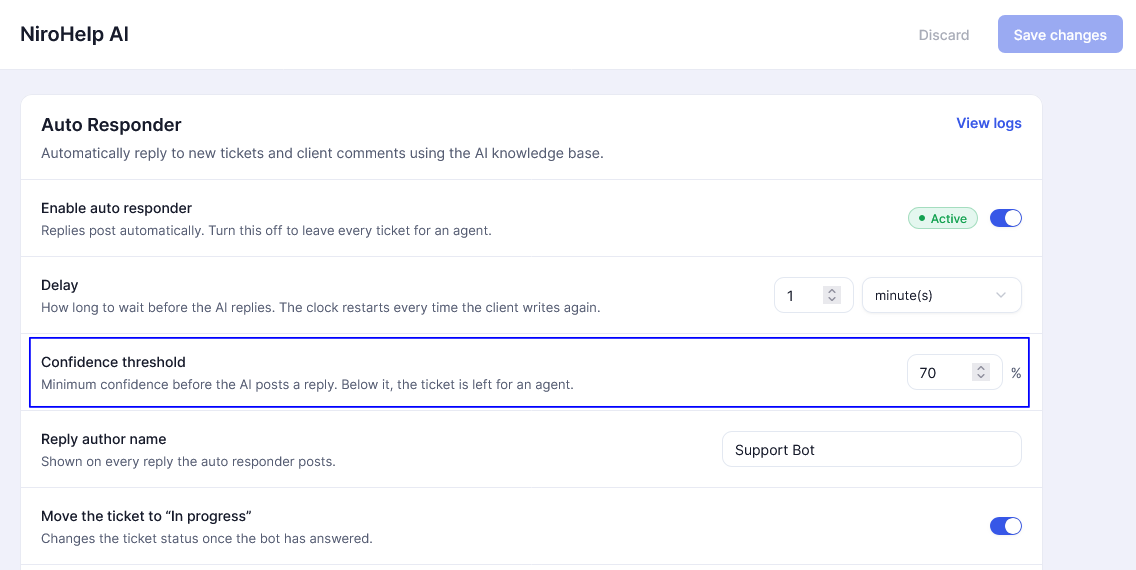
NiroHelp takes a documentation-based approach. Its AI auto-responder can answer tickets when the available knowledge base content meets a configured confidence threshold.
Support ticket records remain in WordPress, while relevant information is sent to the connected AI service for processing.
The right choice depends on whether you want AI to assist agents, answer customers automatically, or support both workflows.

How to Set Up AI Auto-Reply for WordPress Support Tickets
A reliable AI auto-responder needs three things: accurate documentation, a way to determine whether an answer is relevant, and safeguards that leave uncertain questions for a person.
We’ll use NiroHelp as the practical example because it supports confidence-based auto-replies within a WordPress ticketing workflow.
How confidence-based auto-replies work
Suppose a customer submits this ticket: “How do I transfer my license to another website?”
Your knowledge base already includes an article explaining the process. Here’s how NiroHelp handles the request:
- The ticket arrives. A customer creates a ticket or replies to an existing one.
- The reply is scheduled. NiroHelp queues an AI response using the configured delay.
- The ticket is checked. The system verifies that the ticket is eligible and that an agent hasn’t already responded.
- The documentation is searched. The AI looks for relevant information in the synced knowledge base.
- The confidence threshold is applied. If the match is strong enough and other safeguards pass, the AI sends a reply. Otherwise, it leaves the ticket for a person.
This approach helps prevent AI from answering questions that aren’t adequately covered by your documentation.
Choosing a confidence threshold
NiroHelp uses a confidence threshold from 0 to 100, with a documented default of 70.
A higher threshold makes the auto-responder more selective. A lower threshold allows more responses, including some based on weaker documentation matches.
For example:
| Customer question | Example match score | Result at threshold 85 |
| Where can I download my invoice? | 92 | Eligible for an AI reply |
| How do I transfer my license? | 88 | Eligible for an AI reply |
| Can I get a custom discount? | 45 | Leave for an agent |
| My checkout stopped working. | 20 | Leave for an agent |
Note: These scores are illustrative, not actual NiroHelp test results.
We recommend starting at 85 and reviewing actual replies before lowering the threshold.
Look for incorrect answers, agent corrections, and customers contacting support again about the same issue.
A high confidence score doesn’t guarantee that an answer is correct. It indicates how closely the documentation matches the question.
Why the reply delay matters
NiroHelp allows you to configure a delay before sending an AI response. Its documented default is five minutes.
This allows agents to respond first. If an agent replies before the scheduled AI response, the pending reply is cancelled.
If a customer adds another message, the reply timer can restart to account for the updated conversation.
This prevents unnecessary or outdated responses and keeps human agents in control.
Set it up in NiroHelp
NiroHelp’s free WordPress plugin includes a knowledge base, support tickets, agent assignment, and a support dashboard.
Paid plans add ongoing access to the AI auto-responder, chatbot, AI copilot, and email piping. Here’s how to prepare your website for automatic ticket replies.
Step 1: Install NiroHelp and enable the required modules
Install NiroHelp from WordPress.org and activate it.
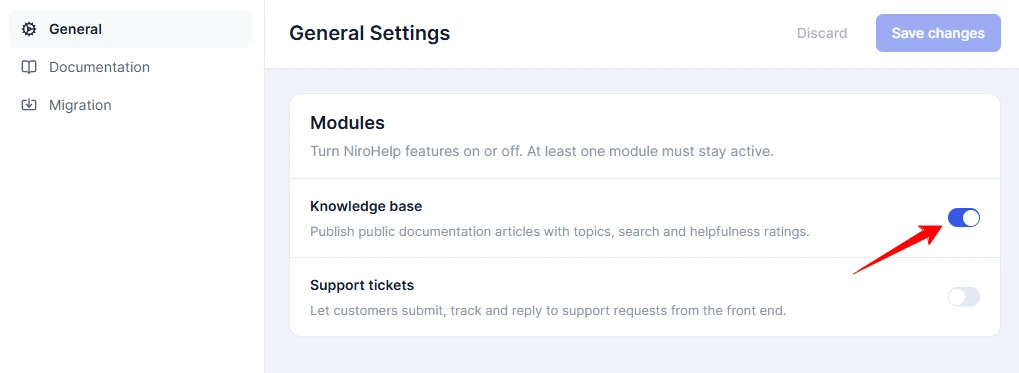
Open NiroHelp in your WordPress dashboard and enable the Knowledge Base and Support Tickets modules.
The auto-responder requires the ticketing module to receive and respond to customer requests.
Step 2: Prepare your knowledge base
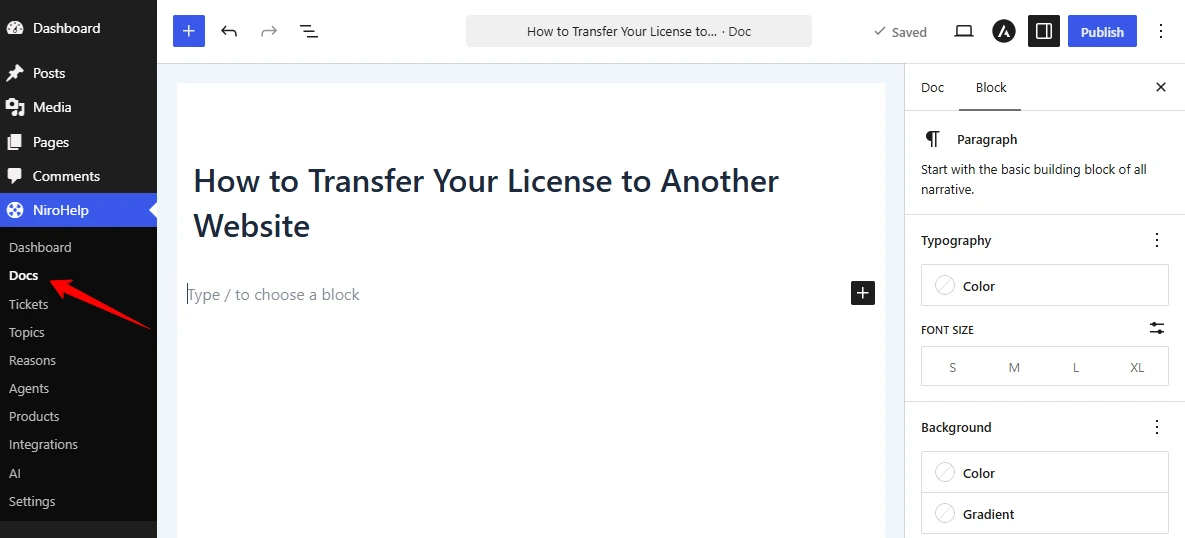
Before enabling AI replies, make sure your documentation answers the questions customers ask most often.
Start with articles about installation, account setup, billing, license management, common errors, and troubleshooting.
Keep instructions specific and easy to follow.
For example, “How to Transfer Your License to Another Website” is more helpful than a general article titled “License Information.”
Step 3: Activate your AI access
Choose an appropriate NiroHelp plan or activate an available AI trial, then complete the AI setup process.
NiroHelp provides access to its AI service without requiring a separate OpenAI API key.
You can review the available options on the NiroHelp pricing page.
Step 4: Sync your documentation
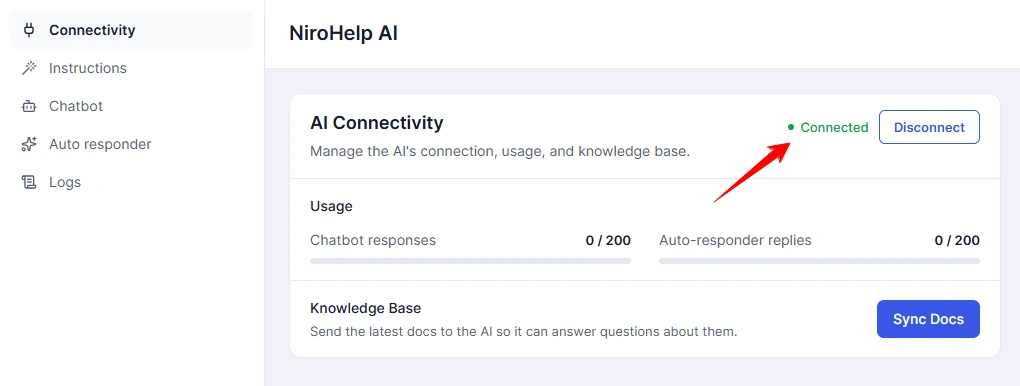
After preparing your articles, sync them with the AI service.
The auto-responder uses synced documentation to find answers, so updated or newly published articles must be available to the AI.
Check the synchronization status before enabling automatic replies.
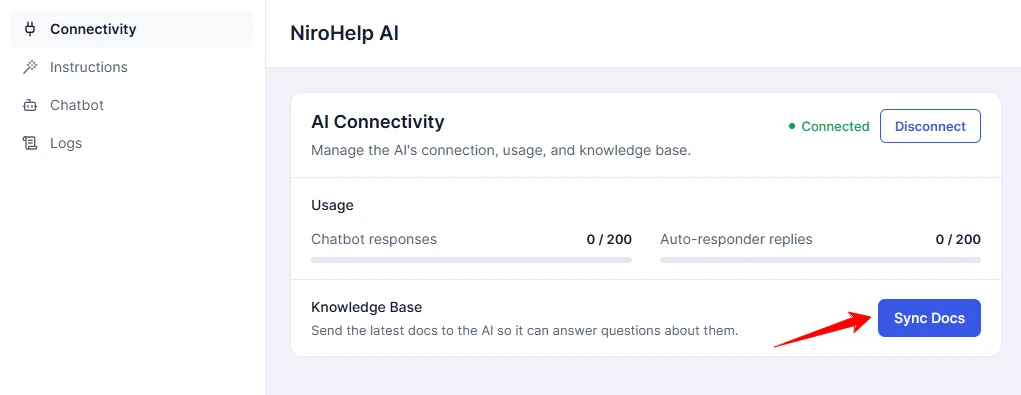
Learn more about syncing documentation.
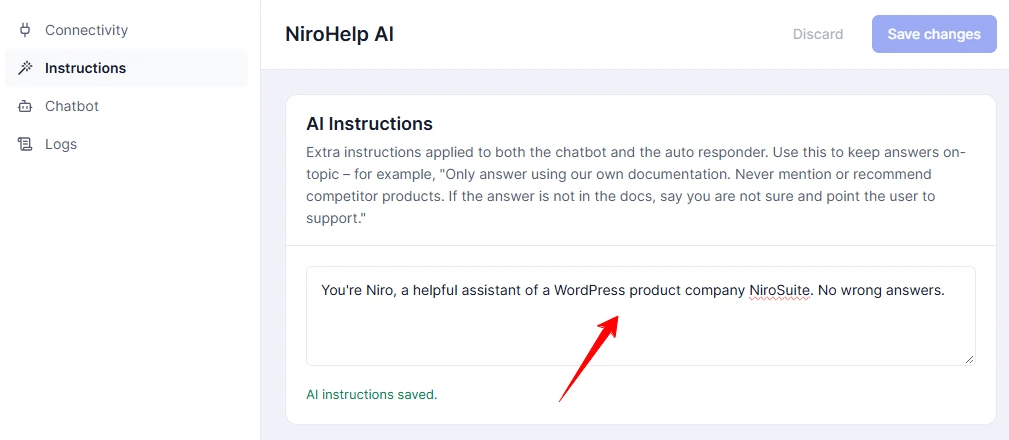
Step 5: Add custom AI instructions
Custom instructions help define how the assistant should respond.
For example:
“Answer using our published support documentation. If the documentation doesn’t clearly cover a question, direct the customer to our support team. Do not promise refunds, discounts, or account changes.”
You can also define the tone of replies and where customers should go when they need human assistance.
However, custom instructions aren’t guaranteed exclusion rules. Sensitive requests still require appropriate human oversight.
See the custom AI instructions guide.
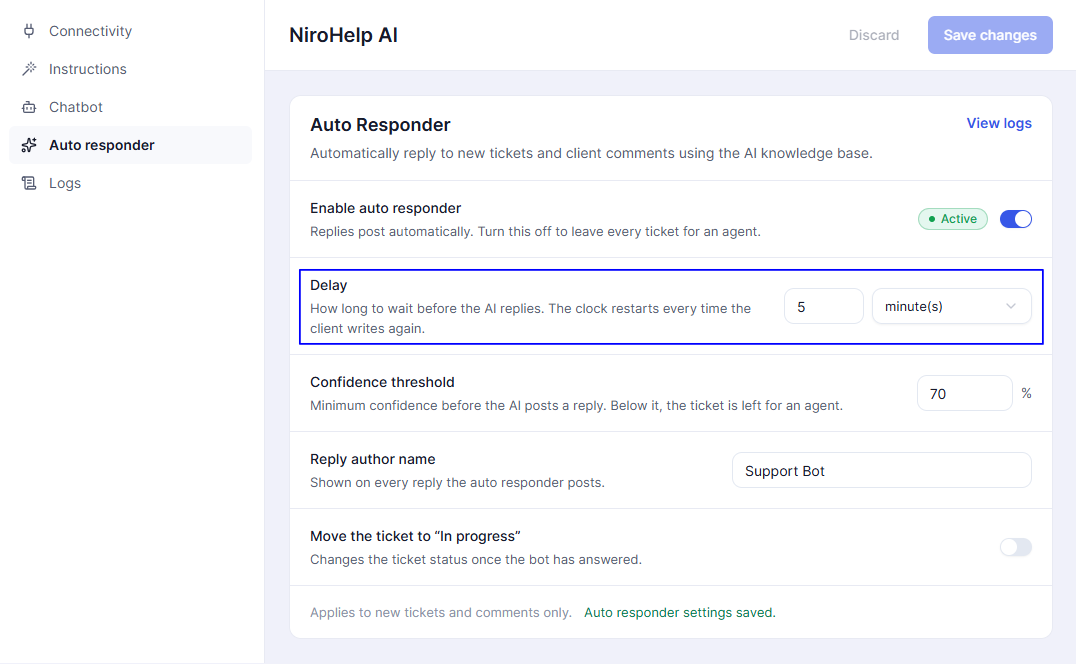
Step 6: Configure the AI auto-responder
Open the AI auto-responder settings and review the available options.
| Setting | Recommended starting point |
| Enable auto-responder | Turn on after syncing documentation |
| Reply delay | 5 minutes |
| Confidence threshold | 85 |
| Comment author name | Support Assistant (AI) |
| Change ticket status | Keep disabled initially |
These are starting recommendations. Adjust them based on your team’s workflow and actual results.
Step 7: Monitor the first two weeks
Review the tickets receiving AI replies.
Check whether the answers are accurate, whether customers need additional help, and whether agents frequently correct responses.
If similar questions repeatedly require intervention, update the relevant documentation before allowing the AI to handle more of them.
Which Support Tickets Should AI Answer Automatically?
Not every support ticket should receive an automated response.
The safest candidates are questions with clear, documented answers that don’t require investigation, account changes, or business decisions.
A practical approach is to divide tickets into three groups.
| Type | Examples | Recommended handling |
| Auto-send | Installation steps, invoice locations, documented settings, straightforward compatibility questions | Allow AI replies when documentation is sufficient |
| Draft only | Refund requests, plan changes, license exceptions, billing adjustments | Require agent review |
| Human only | Security issues, privacy requests, serious checkout failures, angry customers | Assign to a person |
For example, AI can explain where a customer can download an invoice.
But if the customer reports being charged twice, an agent may need to inspect billing records before answering.
Similarly, explaining how to update a plugin setting is different from investigating why a checkout stopped working.
Important: NiroHelp’s current confidence-based responder shouldn’t be treated as having guaranteed category-based exclusion rules for every sensitive request. Custom instructions and confidence checks help guide responses but don’t replace dedicated human review controls.
Why human support still matters
Consider a customer writing:
“I’ve contacted support three times, and my payment problem still isn’t fixed.”
Sending another generic troubleshooting response could make the situation worse.
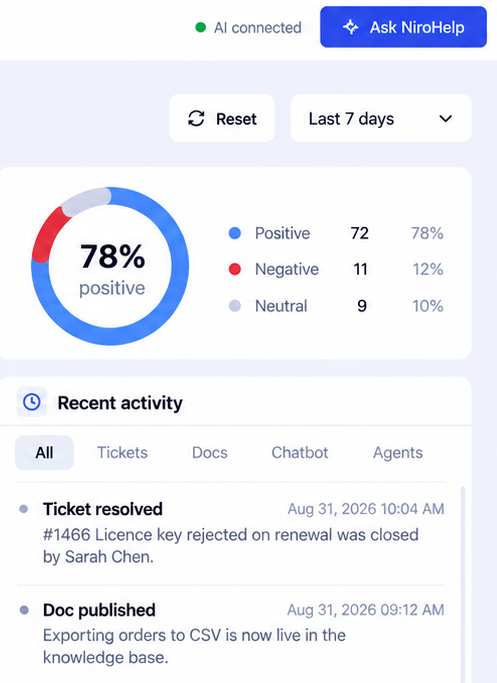
NiroHelp includes sentiment analysis and is designed to hold back automatic replies when a ticket is identified as negative, allowing a person to respond.
That matters to customers.
A 2026 Gartner survey found that 87% of respondents believe companies using generative AI for customer service should provide access to a human agent.
There are also risks when automated systems provide incorrect information.
In Moffatt v. Air Canada (2024), a British Columbia tribunal held the airline responsible for inaccurate information given by its chatbot. The case illustrates why businesses should review their automated responses, especially when customers could rely on them for financial decisions.
AI should reduce routine work, not prevent customers from reaching someone who can solve a complex problem.
Transparency and customer data
Customers should know when they’re receiving an automated response.
A simple approach is to use a recognizable name such as “Support Assistant (AI)” and explain that human support remains available.
For businesses operating in the European Union, applicable AI transparency requirements may also need to be considered.
Article 50 of the EU AI Act includes disclosure obligations for certain AI systems, with relevant provisions applying from August 2, 2026. The requirements depend on the system and the organization’s role.
Customer privacy matters too.
NiroHelp stores ticket records within WordPress, but relevant conversation and customer information is transmitted to its connected AI service when AI features are used.
Before enabling automation, review what information is processed, avoid unnecessary sensitive data, and make sure your privacy documentation accurately describes the service.
Is Your Documentation Ready? The 50-Ticket Test
Your AI auto-responder is only as useful as the information it can access.
Before enabling automatic replies, review your last 50 resolved support tickets and check how many could have been answered using your existing documentation.
How to run the test in your WordPress Site
Step 1: Review your last 50 resolved tickets
Choose recent conversations that represent the questions your customers normally ask.
Step 2: Check documentation coverage
For each ticket, ask, “Could someone answer this question correctly using only our published documentation?”
Mark each ticket as:
- Yes: The documentation provides a complete answer.
- Partly: Some information exists, but more explanation is needed.
- No: The documentation doesn’t adequately cover the question.
For example:
| Customer question | Coverage | Next action |
| Where can I download my invoice? | Yes | Candidate for automation |
| How do I transfer a license? | Yes | Candidate for automation |
| Why did my payment fail? | Partly | Improve troubleshooting documentation |
| Can I receive a special refund? | No | Keep human review |
Step 3: Calculate your documentation coverage
Suppose 18 of your last 50 tickets had complete answers in the knowledge base.
18 ÷ 50 × 100 = 36% documentation coverage
This doesn’t mean AI will resolve 36% of future tickets. It only shows how much of your reviewed workload was supported by existing documentation.
As a starting guideline:
| Fully documented tickets | Suggested action |
| Fewer than 10 out of 50 | Improve documentation first |
| 10–25 out of 50 | Start with a cautious AI pilot |
| More than 25 out of 50 | Consider broader testing with monitoring |
These are practical suggestions, not industry benchmarks.
Step 4: Improve missing documentation
Review tickets marked Partly or No.
Identify questions that appear repeatedly and turn them into clear help articles.
This improves self-service support and gives the AI better information to work with.
Measure resolutions, not just replies
A ticket that receives an automatic answer isn’t necessarily resolved.
A customer might receive an AI response and contact support again because the answer didn’t help.
That’s why you should track more than the number of AI replies sent.
During the first 30 days, monitor:
- Agent corrections: How often agents need to fix an AI answer.
- Repeat contact: Whether customers contact support again about the same issue within 24–48 hours.
- Held-back tickets: Which questions the AI couldn’t answer and whether better documentation would help.
These signals provide a better indication of response quality than reply volume alone.
How Much Does AI Auto-Reply Cost?
AI support tools use different pricing models.
Some charge per agent, others charge per AI outcome, while WordPress plugins often use site-based licenses with AI usage allowances.
Here’s a comparison of publicly listed pricing as checked on October 28, 2026.
| Option | Pricing | AI usage model |
| NiroHelp | Starter $99.99/year, Growth $299.99/year, Agency $499.99/year | 1,000, 6,000, or 15,000 monthly AI credits |
| Zendesk Suite Team | $19 per agent/month, billed annually | Included allowances and applicable additional automated-resolution charges |
| Fin | $0.99 per outcome, with a 50-outcome monthly minimum | Qualifying AI outcomes |
| Help Scout | $30 per month plus applicable AI add-ons | Envoy AI agent listed at $0.75 per resolution |
| Fluent Support | Regular single-site license $90/year | Separate OpenAI usage costs |
Note: Pricing and promotional offers can change. These tools also differ in their capabilities, so their costs aren’t directly equivalent.
NiroHelp uses one AI credit per AI answer. The auto-responder, AI chatbot, and Ask NiroHelp copilot share the available monthly allowance.
If the credits run out, AI features pause until the allowance resets. Other non-AI support features continue working.
A practical cost example
Consider a WordPress support team with three agents and approximately 150 questions per month suitable for AI responses.
Assuming those become 150 billable AI outcomes or answers each month:
| Option | Illustrative annual cost |
| Zendesk Suite Team | $1,980 in base seat fees, plus applicable AI usage charges |
| Fin | Approximately $1,782, excluding the existing help desk |
| Fluent Support Pro | $90 regular annual license, plus OpenAI usage |
| NiroHelp Starter | $99.99 annual license, within the monthly credit allowance |
These amounts represent different combinations of software licenses and AI usage. They shouldn’t be interpreted as a comparison of identical features or guaranteed savings.
For example, Fluent Support’s AI-assisted drafting workflow still requires agent involvement, while NiroHelp can automatically send eligible ticket replies.
Zendesk and Fin also support capabilities beyond the scope of a typical WordPress help desk.
If your team primarily handles documented questions through WordPress, a site-based plan with included AI credits may be easier to budget.
For a larger support operation that needs phone support, advanced routing, or extensive business-system integrations, a broader platform may be more suitable.
Final thoughts: Where to Start?
AI auto-reply works best when you start with the questions your team already answers every day.
Review your last 50 tickets, identify questions covered by your documentation, and improve any missing articles. Then enable automation with a cautious confidence threshold and monitor actual responses.
You don’t need to automate every ticket to make support more efficient.
If you’re managing support through WordPress, NiroHelp’s free plugin gives you a knowledge base, support tickets, and a dashboard to get started.
For ongoing AI automation, NiroHelp’s paid plans start at $99.99 per year for one site and include the AI auto-responder, chatbot, AI copilot, and email piping.
Start with routine questions, keep humans available, and expand automation as your documentation improves.
Frequently Asked Questions
Can AI reply to WordPress support tickets automatically?
Yes. Plugins such as NiroHelp and ReplyPlex can send AI-generated replies automatically when their configured conditions are met.
Do I need an OpenAI API key?
It depends on the plugin. Fluent Support uses an OpenAI account, while NiroHelp includes AI access without requiring a separate API key.
Can AI answer every support ticket?
No. AI is best suited to documented, routine questions. Refund exceptions, security issues, and complex problems should receive human review.
What happens if the AI gives a wrong answer?
An agent should correct it. Review the documentation, confidence threshold, and response settings to reduce similar mistakes.
Will customers know a reply came from AI?
Not automatically in every setup. Use a clear AI author name and inform customers when automated replies are used.