
Attendee questions, filed with their event and booking.
If you sell event tickets with Eventin, attendees can ask for help from their Eventin dashboard and from the event page itself. The ticket arrives with the event and booking it is about, so your team never has to ask which event or which order the question means.
Why connect it
Help where attendees already are
Support beside their bookings
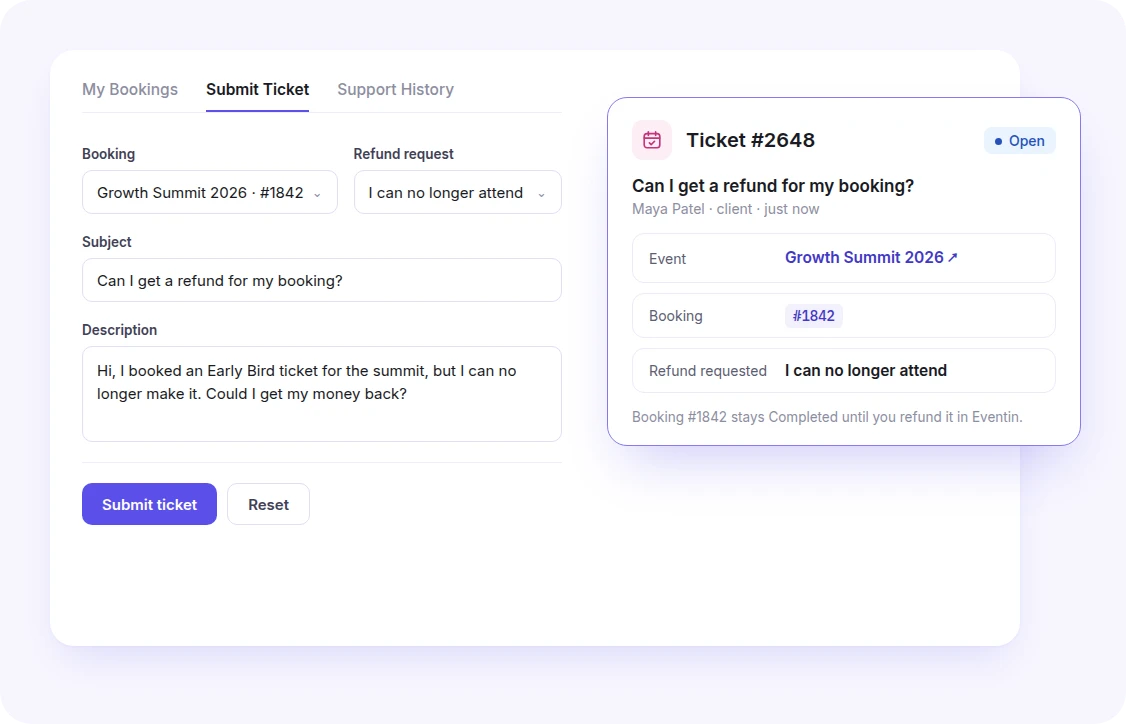
Submit Ticket and Support History tabs join My Bookings in the Eventin Pro customer dashboard, and each booking’s Get Support button opens the form with that booking already chosen.
Questions from the event page
A “Questions about this event?” section on your event pages opens the ticket form with the event filled in — for anyone, whether or not they have booked.
Only their own bookings
The form lists only the signed-in customer’s own bookings, matched the way Eventin itself matches them. A booking that isn’t theirs never reaches the ticket.
Refund requests, not refunds
A customer with a paid booking can say why they want their money back. Your team sees the reason on the ticket, and the booking stays as it was until you refund it in Eventin.
Coverage
What it adds
Three switches on the Eventin card, the first two on by default, plus what a ticket carries and what the AI can read. Turn a switch off and that part disappears; tickets already filed keep their event and booking.
- Submit Ticket tab
- In the Eventin Pro customer dashboard, for signed-in Eventin customers. The form offers their own bookings, and a refund reason when one is paid. On by default.
- Support History tab
- Arrives with Submit Ticket: the customer’s bookings, each with Get Support, then their own tickets with event, booking, last update and status.
- Event pages
- A Get support button after the event’s details, opening your ticket form with the event filled in. On by default.
- Failed bookings
- One ticket for each booking Eventin marks as failed, filed under the customer with the booking, event, amount, payment method and date. Off by default.
- Event · Booking
- Shown on the ticket next to Order #; the event links to its page.
- Refund requested
- The customer’s reason: “I can no longer attend”, “The event changed or was cancelled”, “I booked more than once by mistake” or “Another reason”.
- Events for the AI
- On the Pro plan, each event can be indexed with its description, dates, time, location, ticket prices and FAQ, so the chatbot answers from it.
The details
Everything Eventin ships with.
- Requires
- Eventin installed and active, and the tickets module on. The dashboard tabs need Eventin Pro 4.1.23 or later and its [etn_pro_dashboard] page.
- Who sees the tabs
- Signed-in users with Eventin’s customer role. Administrators and other accounts see Eventin’s dashboard unchanged.
- Event pages
- Added after the event details on Eventin’s classic layouts. A template-builder layout takes a Shortcode block with [nirohelp_eventin_support]. Either way, a New Ticket page must be set under Settings → Tickets → Pages.
- Ownership
- A booking belongs to the account Eventin recorded as its customer. A ticket keeps a booking only when its client owns it and an event only while it is published, so a guest can never attach a booking.
- Guests and spam
- Visitors can ask from an event page while Allow guest submissions is on. Guest tickets carry a hidden field only a bot fills in, and are capped at five per IP address every ten minutes.
- Refunds
- A reason is offered for a completed or partly refunded booking and kept on the ticket. NiroHelp never refunds anything; refunds stay with the organizer, in Eventin.
- Failed bookings
- A declined Stripe or Razorpay payment, a failed WooCommerce order, or an organizer setting a booking to Failed. A cancelled booking doesn’t count, and each booking gets one ticket however often the failure is reported.
- Support History
- The customer’s own tickets only, newest first, up to 50. View Ticket opens each on your My Tickets page, where they read the replies and answer.
- AI answers
- Events is listed under NiroHelp → AI → Custom posts while Eventin is active; tick it and sync. Policies that apply to every event, like refunds, belong in your NiroHelp docs.
- Where to configure
- NiroHelp → Integrations → Eventin, inside the admin dashboard.
Common questions
No. Bookings, checkout and refunds work exactly as before. NiroHelp reads the bookings, adds its own tabs to the customer dashboard and a section to event pages, and each of those has its own switch.
Yes. Get support on the event page opens your ticket form with the event filled in, booked or not. A visitor who isn’t signed in can file while guest submissions are allowed.
No. The ticket records the reason, and the booking stays exactly as it was. Only the organizer can refund it, from the booking in Eventin.
On the Pro plan, yes. Tick Events under NiroHelp → AI → Custom posts and sync, and it answers from each event’s dates, location, ticket prices and FAQ. When it can’t answer, it can offer to open a ticket instead.
Ready to set up Eventin?
It’s part of the free core plugin — install NiroHelp and turn it on under Integrations.