
Every customer’s orders, right beside the ticket.
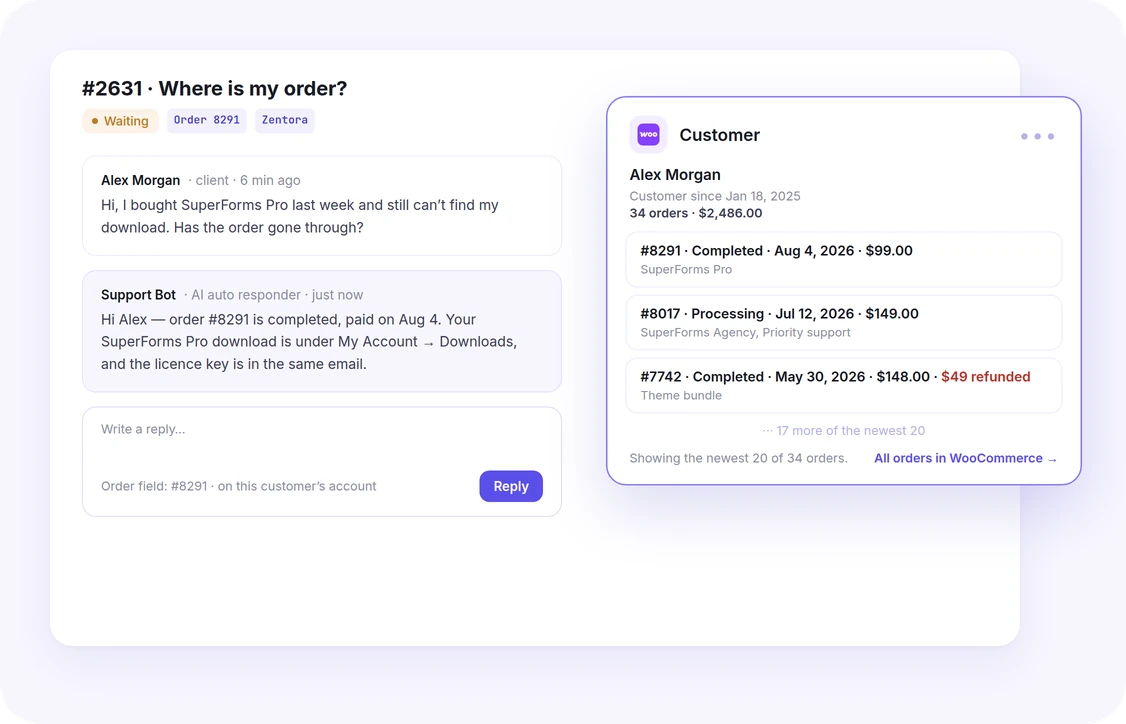
With WooCommerce active, a ticket shows the purchases of the customer who filed it — orders, totals, refunds and items — next to the conversation, and the AI auto-responder can answer “where is my order?” from the order itself. There is nothing to connect: it reads your own store.
Why connect it
Answer with the order in front of you
Nothing to set up
NiroHelp finds WooCommerce on its own. No API key, no settings screen — it reads the store through WooCommerce’s own functions, with HPOS on or off.
The history at a glance
Customer since, order count and total spent, then the newest 20 orders with status, date, total, refunds and items — and a link to all of them in WooCommerce.
The AI knows the order
The auto-responder gets the order in the ticket’s Order field, or the customer’s latest one, so it can answer an order question even when no doc covers it.
Only their own orders
Orders are matched to the customer’s account, never to an email typed in a form. An order number that is not theirs is flagged on the ticket and never reaches the AI.
On the ticket
What the Customer box shows
A Customer box on the ticket screen in wp-admin, for anyone who can manage tickets. It reads the store each time it is needed, so it never shows a stale order for long.
- Customer
- Their name and when they became a customer.
- Orders and spend
- How many orders they have placed, and their total value.
- Newest 20 orders
- Number, status, date, total, any refund, and the items in each.
- Order links
- Each order opens in WooCommerce — for people who can edit orders there.
- Order check
- An Order field naming an order that is not on this customer’s account is flagged.
- Staff tickets
- A ticket staff opened for someone says the client is a staff account, instead of showing the staff member’s own purchases.
The details
Everything WooCommerce ships with.
- Requires
- WooCommerce 7.0 or newer, active, and the tickets module on.
- Storage
- Read through WooCommerce’s own order functions, so it works the same with High-Performance Order Storage on or off.
- Matching
- By the ticket author’s WordPress account. Guest checkouts are not linked to an account, so they are not shown.
- Which orders
- Every WooCommerce order status except checkout drafts. Refunds and subscriptions are not counted as orders; trashed orders are left out.
- Order numbers
- Matched as the store shows them, so sequential-number plugins work; a leading # or padding zeros make no difference.
- Sent to the AI
- One order at most — its number, status, totals, refunds, dates and item names — and only for a ticket a signed-in customer filed for themselves. Never a phone number, address, email or payment details.
- Freshness
- Kept for ten minutes per customer, and cleared the moment an order is saved, refunded, trashed or deleted.
- Desk access
- Agents and managers reach wp-admin even though WooCommerce normally sends non-staff accounts to My Account.
- Where to see it
- The Customer box on a ticket’s screen in wp-admin. There is nothing to configure.
Common questions
No. With WooCommerce active and the tickets module on, the Customer box appears on tickets by itself.
One order: the one in the ticket’s Order field when it is the customer’s own, or their latest order when the field is empty. It never sees an order list, contact details or payment details.
For an order question, yes. When the ticket’s Order field names one of the customer’s orders, the AI may answer below the confidence threshold from that order alone — if the order does not answer it, the ticket waits for an agent. Their latest order alone never lifts the threshold.
They are not linked to an account, so they do not show on the ticket and are never sent to the AI.
Ready to set up WooCommerce?
It’s part of the free core plugin — install NiroHelp and turn it on under Integrations.