
WPForms submissions, turned into tickets.
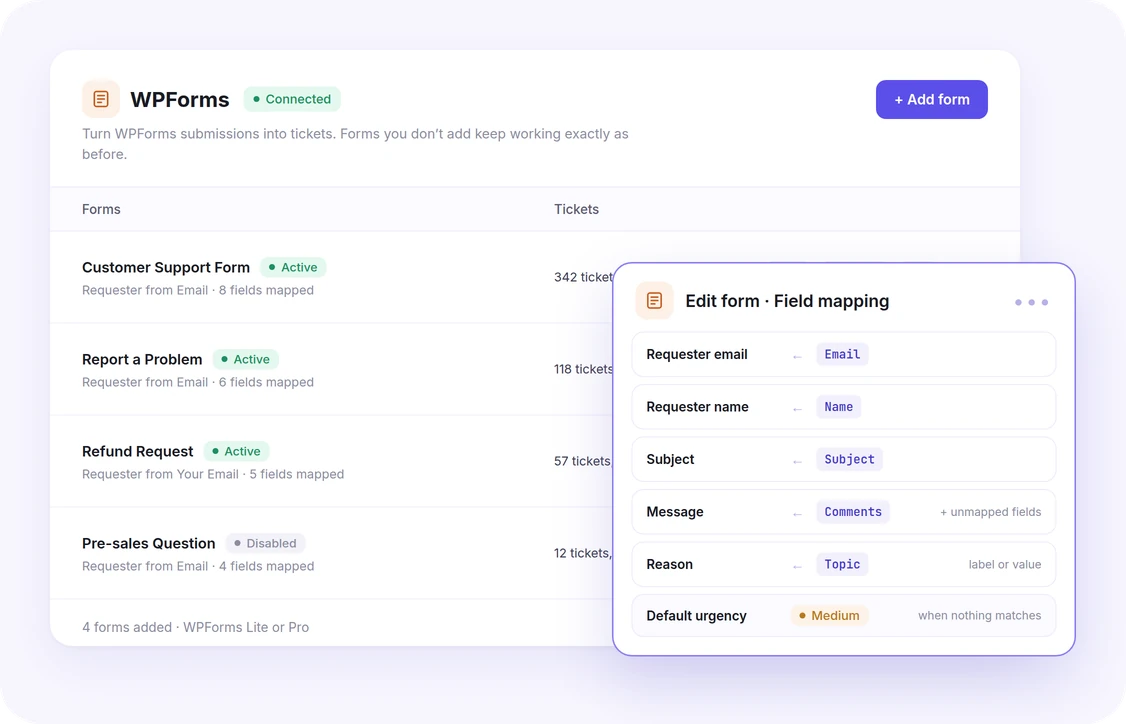
Keep the WPForms forms your customers already use, on Lite or Pro. Add a form to NiroHelp, map its fields onto the ticket, and every submission joins the same queue, assignment, AI replies and history as a ticket from your own form.
Why connect it
Keep the form, lose the inbox
Only the forms you choose
Add published forms one at a time. Any form you leave out keeps working as before, and any form you add can be disabled or removed on its own.
Mapped field by field
Pick the requester, subject and message — and product, reason, urgency, order ID or your own ticket fields. A mapping remembers the field, so relabelling it in WPForms changes nothing.
One submission, one ticket
The same form with the same answers within 10 minutes opens one ticket, so a refreshed confirmation page or a double click never makes two. Spam and entries that fail validation never get through.
Sensitive fields stay out
Password and credit card fields are never copied onto a ticket, and captchas, layout and repeater fields are skipped. Everything else you did not map is kept in the ticket’s message.
Field mapping
What a form field can fill
Each part of the ticket gets a picker of the form’s own fields. Only the requester’s email is required; product, reason and urgency fall back to the form’s defaults.
- Requester email
- Required. The ticket is filed under the account this address belongs to, and its sign-in link is mailed there.
- Requester name
- The name a new customer account is given.
- Subject
- The ticket’s title. Left unmapped, it names the form.
- Message
- The ticket’s body, followed by every field you did not map.
- Product · Reason
- Matched by name, slug or ID. A dropdown using Show Values can match on its label or its value.
- Urgency
- Low, Medium, High or Severe, by key or label.
- Order ID
- Stored on the ticket, as the ticket form stores it.
- Custom fields
- Any custom field switched on in the ticket form under Settings → Tickets → Form fields.
The details
Everything WPForms ships with.
- Requires
- WPForms Lite or Pro installed and active, and the tickets module on.
- Forms
- Published forms, added one by one, each Active or Disabled, with its own mapping and defaults. A form that is never added opens no tickets.
- Triggers
- Only a submission WPForms completed with no errors and did not mark as spam opens a ticket.
- Duplicates
- The same form with the same answers within 10 minutes does not open a second ticket — a form with AJAX off posts again when its confirmation page is refreshed.
- Attachments
- WPForms Pro’s File Upload field: files are copied onto the ticket under NiroHelp’s own allowed types and size limit; a refused file is listed in a private note, and an upload that cannot be traced to a file keeps its address in the message.
- New customers
- Someone with no account gets a ticket only while guest submissions and account creation are both allowed. The screen says when that is turning people away.
- Source
- The ticket shows “WPForms · form title” in the Tickets list, and keeps that label if the form is renamed or deleted.
- If WPForms is off
- Forms stop opening tickets, nothing breaks, and the mappings are still there when it comes back.
- Where to configure
- NiroHelp → Integrations → WPForms, inside the admin dashboard.
Common questions
Yes. Everything works on Lite; file uploads need WPForms Pro, because the File Upload field is a Pro field.
No. WPForms keeps handling its entries and emails as before; NiroHelp only reads a submission once you add that form and map its fields.
WPForms’ normal confirmation. A submission NiroHelp cannot turn into a ticket never shows the visitor an error.
If the AI auto-responder is on, yes — a WPForms ticket is answered under the same confidence threshold and delay as any other.
Ready to set up WPForms?
It’s part of the free core plugin — install NiroHelp and turn it on under Integrations.