

NiroHelp ships two modules: Knowledge base (docs) and Support tickets. Either can be switched off if you do not need it.
Where the toggle lives
- Go to NiroHelp → Settings.
- Open the General tab.
- The Modules section has two checkboxes – Knowledge base and
Support tickets. - Untick the one you do not need and Save changes.
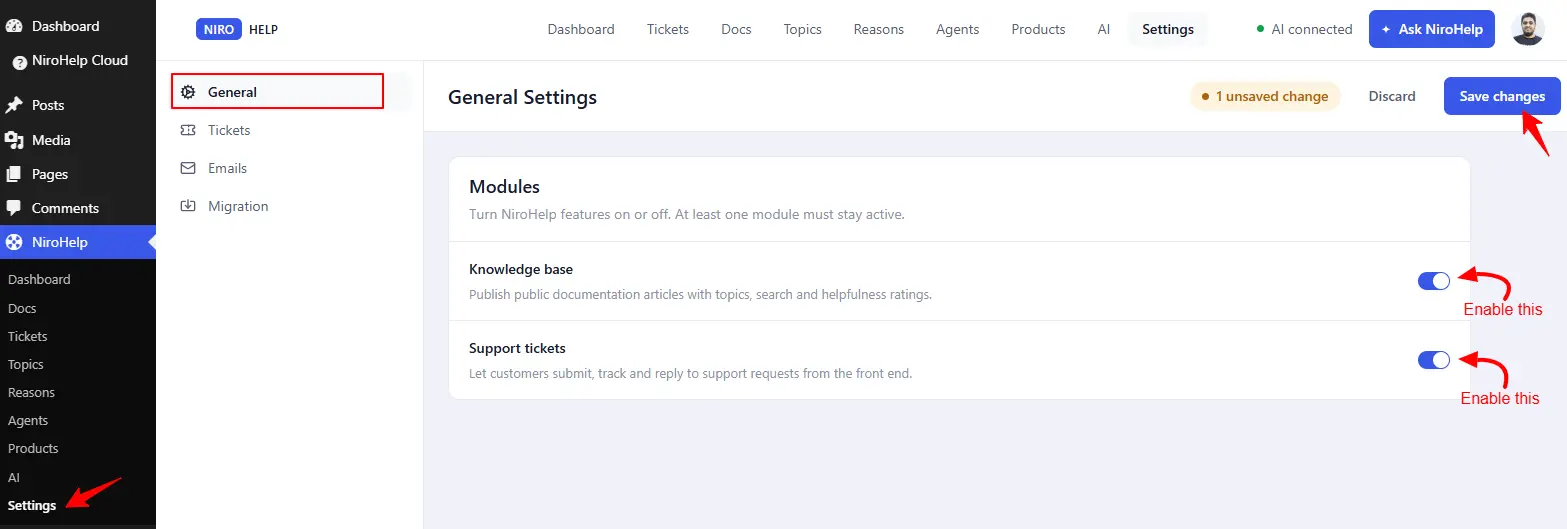
Both are on by default.
Nothing stops you unticking both, but a site with neither has no NiroHelp features left to configure.
What changes when a module is off
Knowledge base off: the Documentation settings tab disappears and the Topics menu is removed. Your existing docs are untouched and come straight back when you switch the module on again.
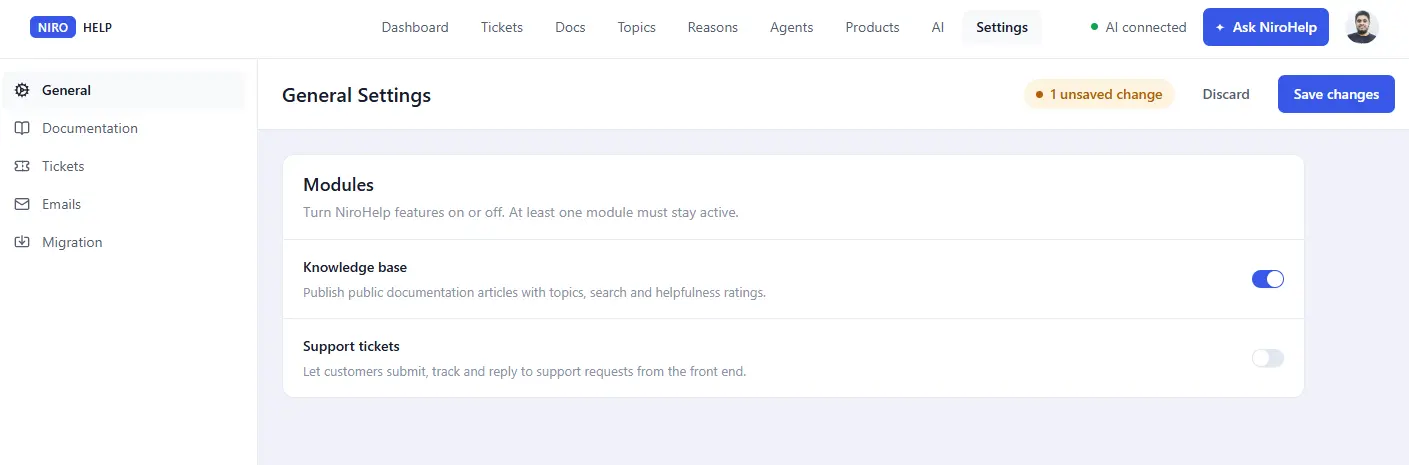
Support tickets off: the Tickets and Emails settings tabs disappear, the Reasons and Agents menus are removed, and Auto responder drops out of the AI screen. Your existing tickets stay exactly where they are.
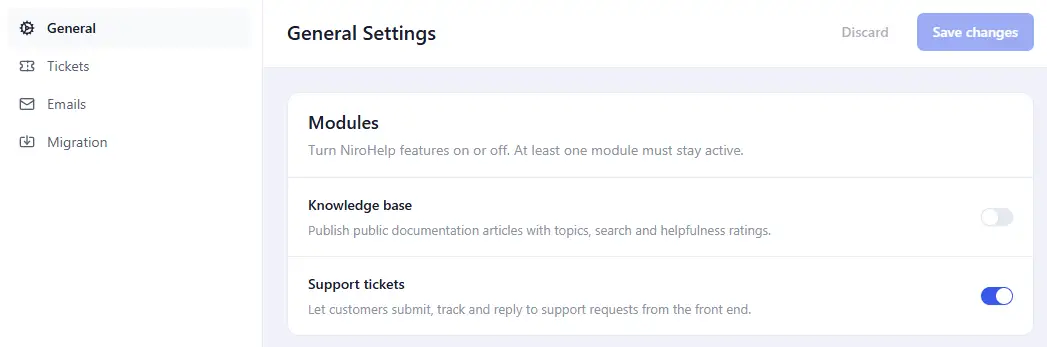
General, Migration and Products are always available Products is shared by both modules, so it stays registered either way.
The AI features live on their own screen, NiroHelp → AI, not in Settings. They are optional and mostly independent of these two checkboxes. The one link is the Auto responder, which needs Support tickets and disappears without it.
A docs-only site, or a tickets-only site
Turning a module off leaves no half-finished screens behind. If you only want a knowledge base, untick Support tickets. If you only run a ticket queue, untick Knowledge base. The admin menu shrinks to match.
Was this doc helpful?