

Every NiroHelp setting lives on one screen: NiroHelp → Settings. The tabs you see depend on which modules are on – switch the knowledge base off and the
Documentation tab disappears immediately.
The AI features are not a settings tab. They live on their own screen, NiroHelp → AI, and are covered in AI Assistance.
This page lists every field, its default, and what it does.
General
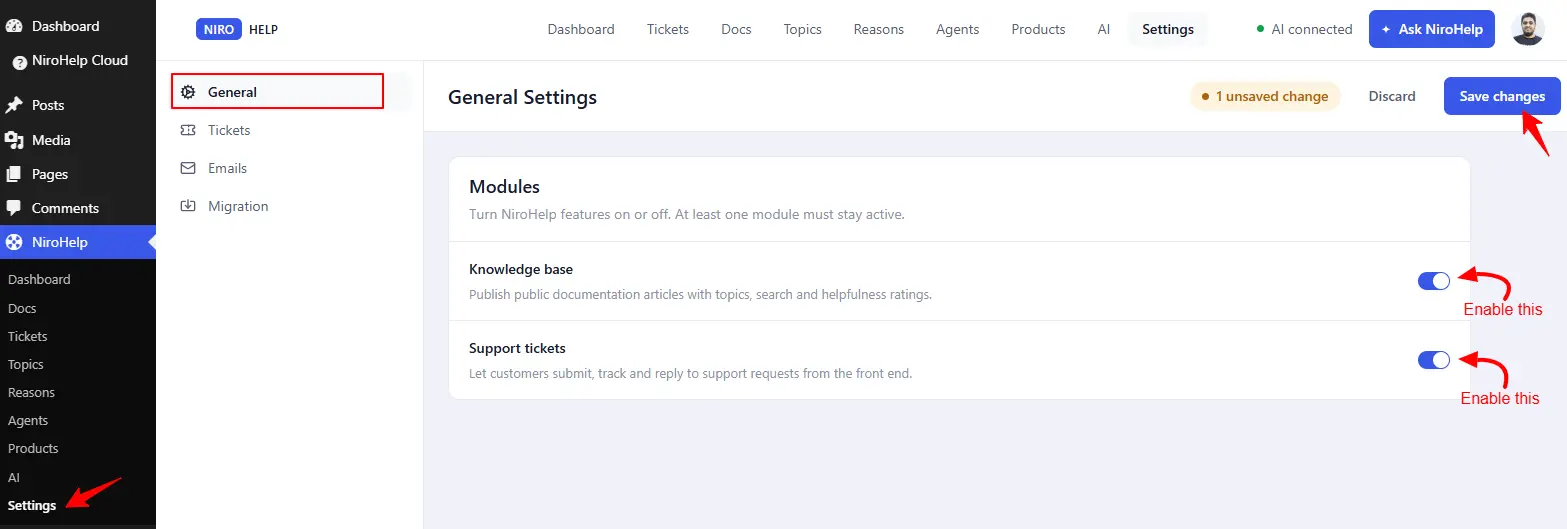
Modules
Turn NiroHelp features on or off. See Turning modules on and off.
| Setting | Default | What it does |
|---|---|---|
| Knowledge base | on | Docs, Topics and the docs settings. |
| Support tickets | on | Tickets, Reasons, Agents, Emails. |
Documentation
Permalinks
| Setting | Default | What it does |
|---|---|---|
| Docs URL structure | the docs page slug, e.g. docs | How individual doc addresses are built. Nine choices. |
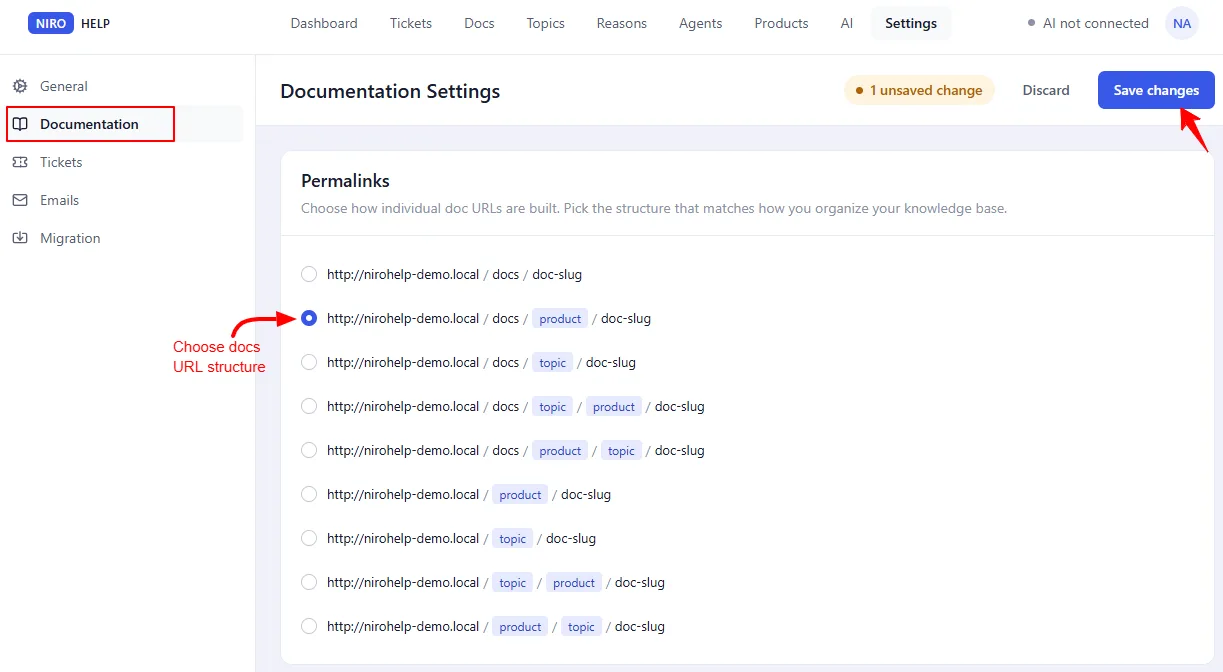
See Doc URLs — changing this needs a follow-up step, or your doc links stop working.
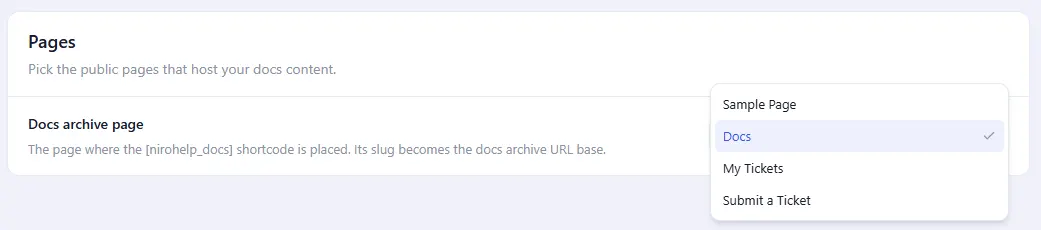
Pages
| Setting | Default | What it does |
|---|---|---|
| Docs archive page | — | The page that lists your docs. Its slug also sets the docs URL base. |
Display
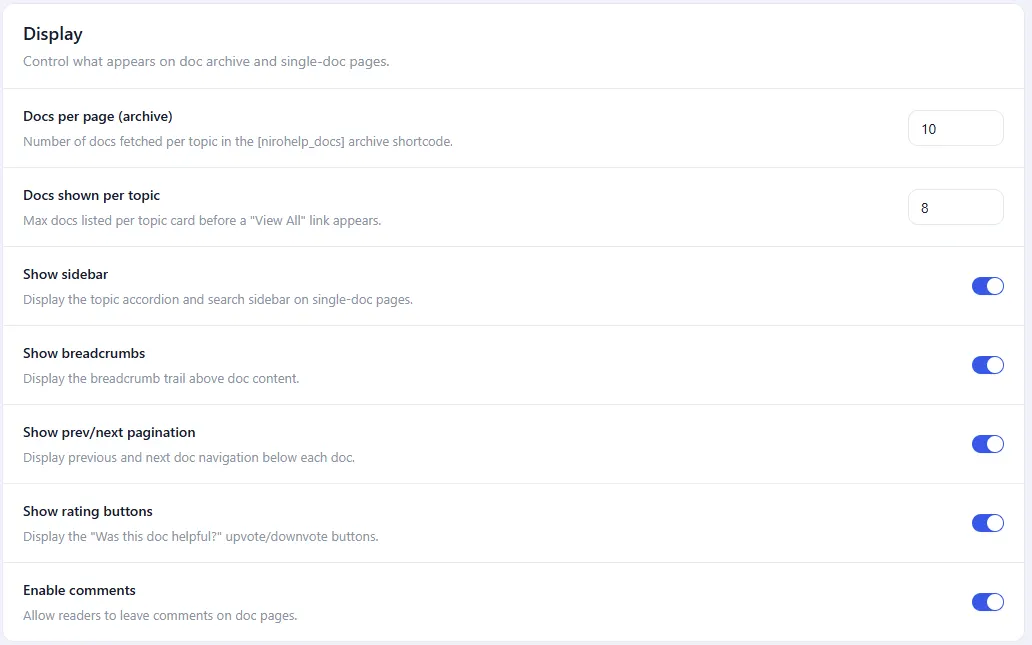
Controls what appears on the docs archive and on a single doc.
| Setting | Default | What it does |
|---|---|---|
| Docs per page (archive) | 10 | How many docs the archive shows at once. |
| Docs shown per topic | 8 | How many docs are listed under each topic. |
| Show sidebar | on | The sidebar on a single doc. |
| Show breadcrumbs | on | The trail above the doc title. |
| Show prev/next pagination | on | Links to the neighbouring docs. |
| Show rating buttons | on | The helpful / not-helpful buttons. See Reader voting. |
| Enable comments | on | Reader comments on docs. |
Cache
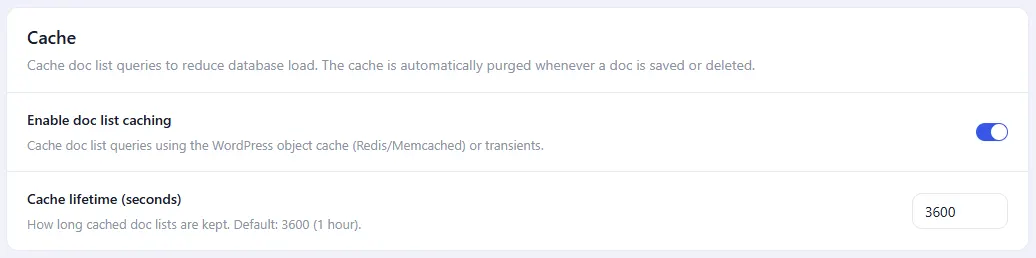
Doc lists are cached to reduce load. The cache clears itself whenever you save or delete a doc, so a published edit shows straight away.
| Setting | Default | What it does |
|---|---|---|
| Enable doc list caching | on | Turns caching on or off. |
| Cache lifetime (seconds) | 3600 | One hour by default. |
Tickets
Pages
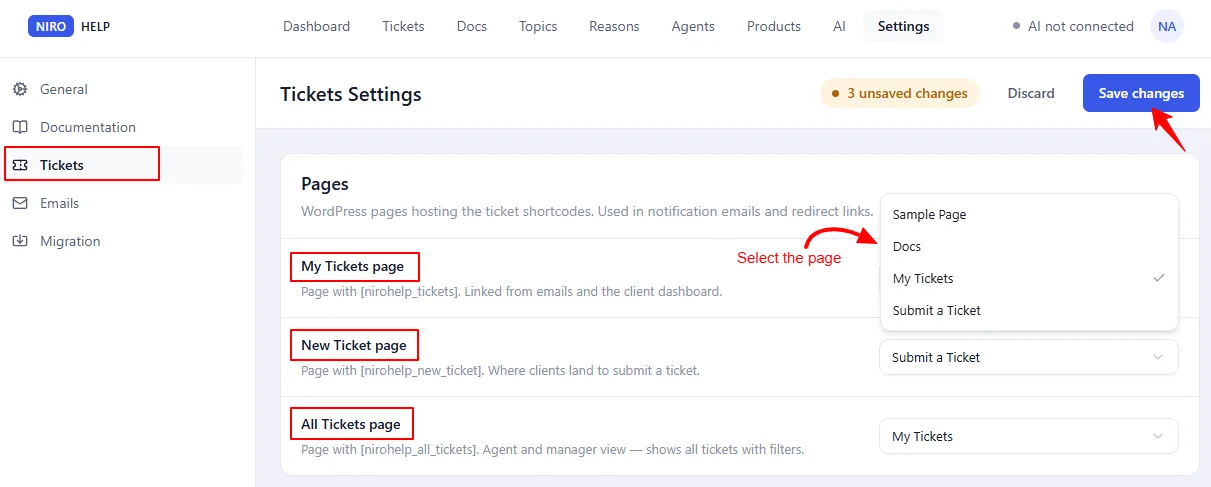
The public pages hosting your ticket shortcodes. Notification emails build their links from these, so keep them selected.
| Setting | Default | What it does |
|---|---|---|
| My Tickets page | — | Where a client sees their own tickets. |
| New Ticket page | — | Where a client files a ticket. |
| All Tickets page | — | Optional front-end queue for agents. |
Form fields
| Setting | Default | What it does |
|---|---|---|
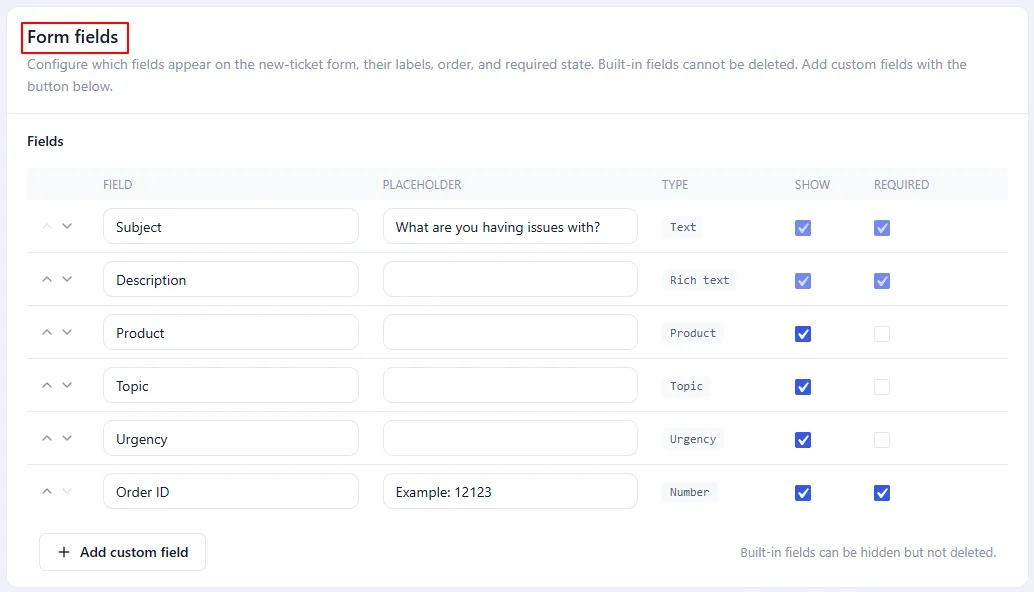
| Fields | the six built-in rows | Which fields appear on the new-ticket form, their labels, order and required state. |
Built-in fields cannot be deleted, only switched off. You can add your own. See Building the ticket form.
Submission
| Setting | Default | What it does |
|---|---|---|
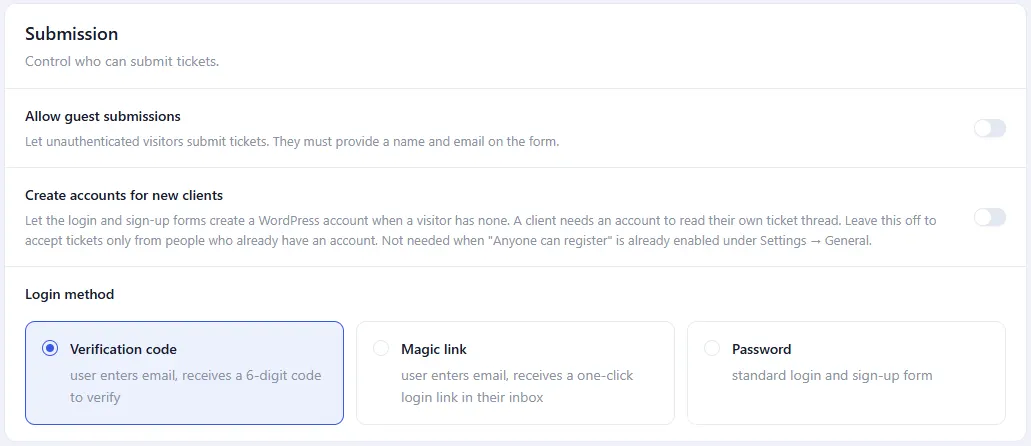
| Allow guest submissions | off | Whether a visitor can file a ticket without an account. |
| Create accounts for new clients | off | Whether a first-time client gets an account made for them. |
| Login method | Verification code | How clients sign in. See Client login. |
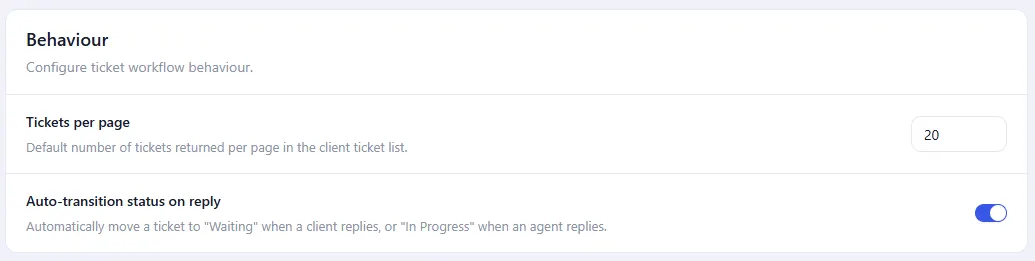
Behaviour
| Setting | Default | What it does |
|---|---|---|
| Tickets per page | 20 | Page size on the front-end ticket lists. |
| Auto-transition status on reply | on | Whether a reply moves the ticket to Waiting or In Progress. See Ticket statuses. |
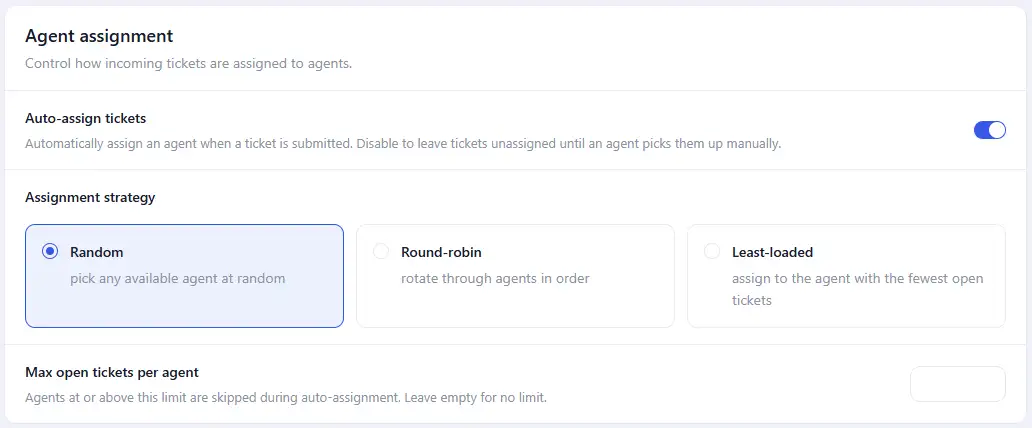
Agent assignment
| Setting | Default | What it does |
|---|---|---|
| Auto-assign tickets | on | Whether new tickets are given an agent automatically. |
| Assignment strategy | Random | Random, round-robin or least-loaded. |
| Max open tickets per agent | empty | A cap per agent. Empty means no cap — read the warning in Auto-assigning agents before you set one. |
Emails
Every ticket notification is edited here. See Notification emails for the placeholders you can use in them.
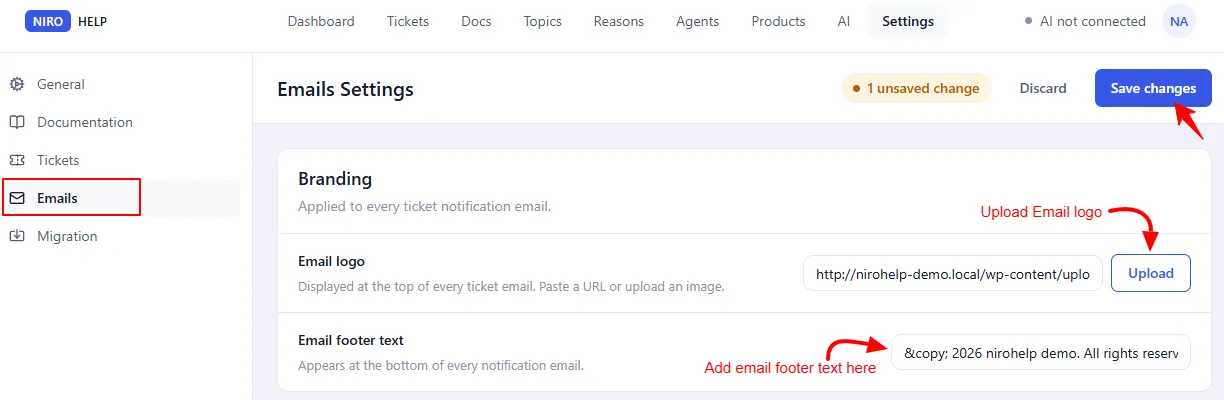
Branding
Applied to every notification email.
| Setting | Default | What it does |
|---|---|---|
| Email logo | — | An image shown at the top. |
| Email footer text | © {year} {site name}. All rights reserved. | The small line at the bottom. |
The seven emails
Each has a Header, a Subject and a Body.
| Section | Sent to | When |
|---|---|---|
| Login verification code | Visitor | A login code was generated. |
| Magic link login | Visitor | A one-click login link was generated. |
| New ticket — to client | Client | A ticket is created. |
| New ticket — to agent | Agent | A ticket is created and an agent was assigned. |
| Agent replied — to client | Client | An agent answers the ticket. |
| Client replied — to agent | Agent | A client answers the ticket. |
| Ticket resolved — to client | Client | The ticket is marked Resolved. |
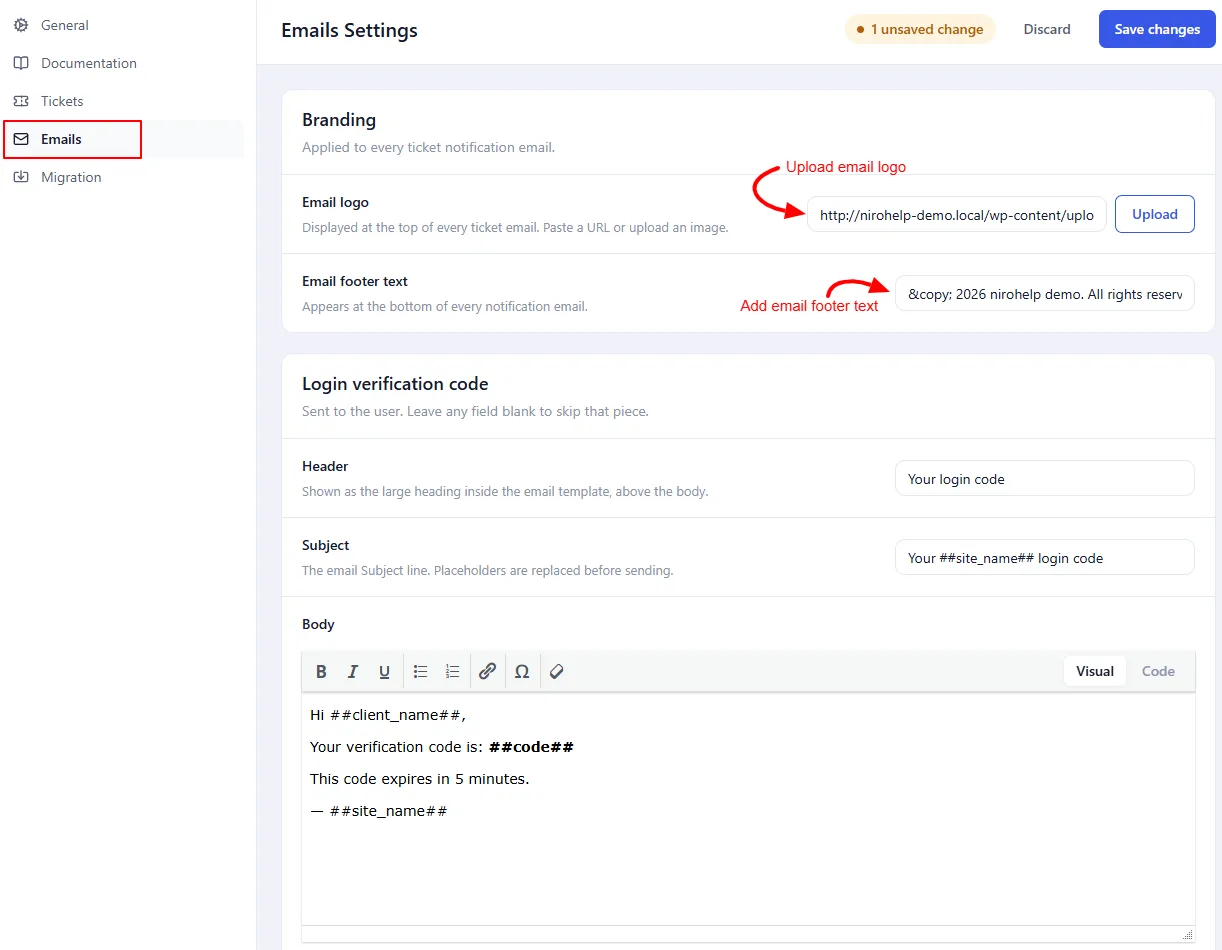
Each section says “leave any field blank to skip that piece”. That is not what happens. Blanking a body sends an email with an empty body rather than sending nothing. To stop an email going out, ask a developer to unhook it – see Notification emails.
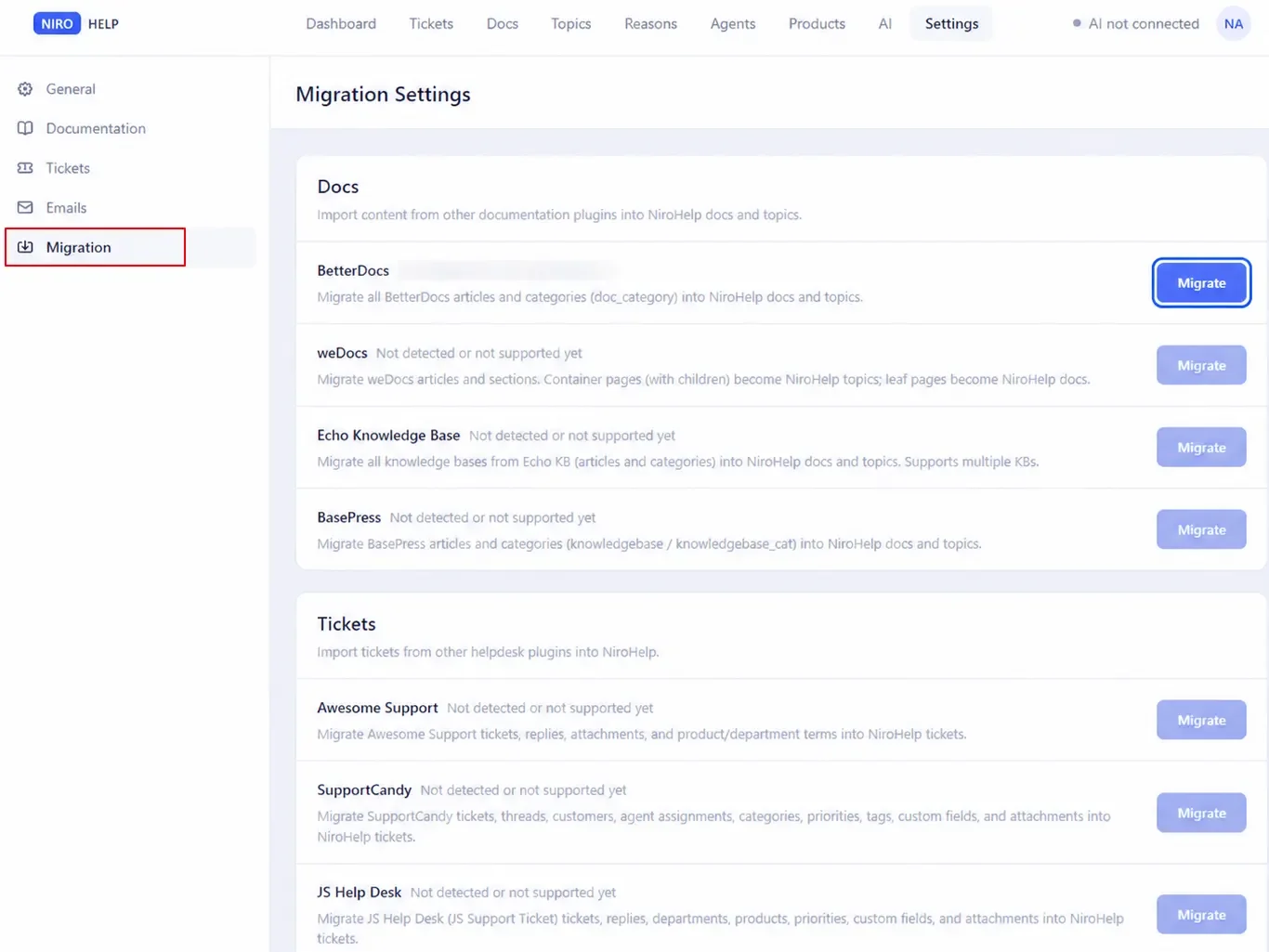
Migration
No fields of its own – the tab is the migration screen. See Migrating from other plugins.
Settings edited somewhere else
Four groups of settings belong to the AI features and are edited on NiroHelp → AI, not here:
| Setting group | Edited on | Documented in |
|---|---|---|
| Connection details | AI → Connectivity | Registering for AI |
| Custom instructions | AI → Instructions | Custom AI instructions |
| Chatbot | AI → Chatbot | Customizing the chatbot |
| Auto responder | AI → Auto responder | The AI auto responder |
Was this doc helpful?