

The AI features chatbot, auto responder, Ask NiroHelp and doc sync are tied to a site key issued when you first registered. You can break that link at any time and register again later.
Why you might disconnect
- You are shutting the site down.
- You think the site key has leaked and want it invalidated.
- You are changing the contact email and want a clean re-registration.
How to disconnect
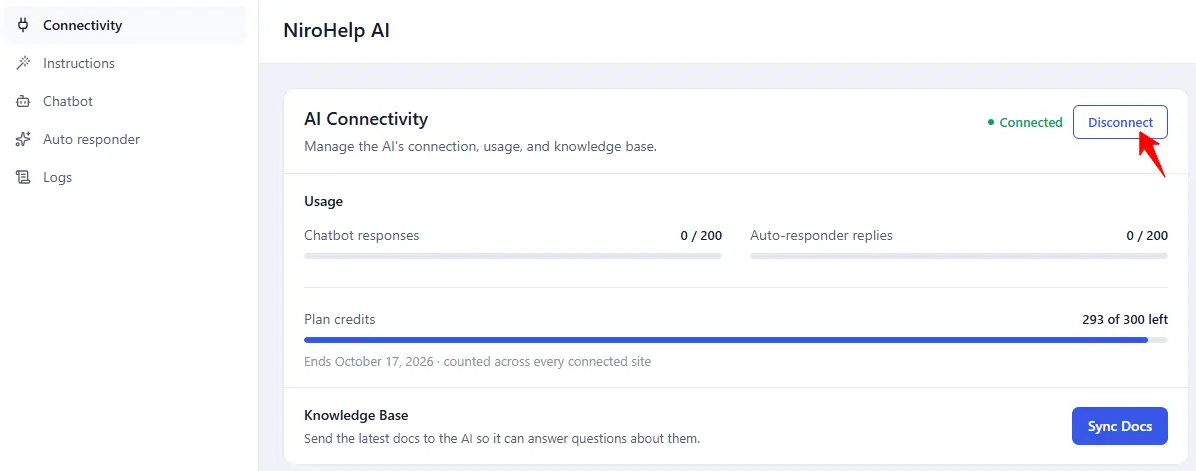
- Go to NiroHelp → AI.
- Click Disconnect on the AI Connectivity card.
- Confirm.
The service is told to invalidate your key, and your site’s copy of the name, email, key and connection status is cleared. The card goes back to the name and email form, and the AI menu disappears, because everything else on it configures something the service runs.
Disconnecting always completes, even if the service cannot be reached at that moment – your site never gets stuck connected to a backend that is down.
What changes immediately
- Chatbots already deployed elsewhere stop working. They carry the old key and the service now rejects it.
- The auto responder stops. Queued replies expire without posting.
- Sync Docs, Instructions, Chatbot and Auto responder disappear from the screen.
What is not deleted
- Your docs. They are ordinary WordPress content.
- Your ticket data.
- Your chatbot configuration – colours, agent name, business hours, all of it.
- Your auto-responder settings – delay, threshold, author name.
The last two sit dormant and come straight back when you reconnect.
Re-registering
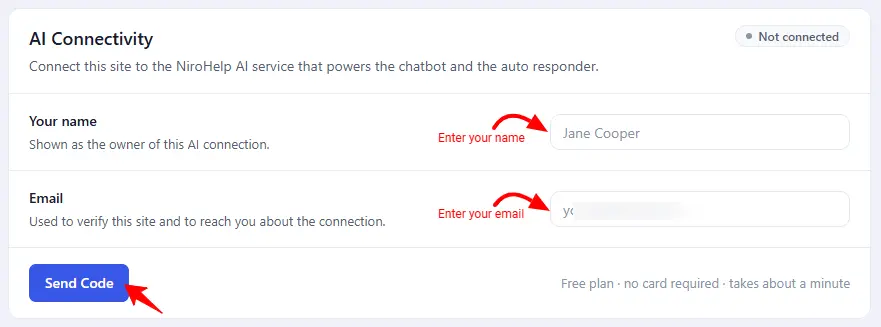
Fill in the name and email on the Connectivity card and click Send Code, as you did the first time. Paste the new key into Site key and click Verify.
The new key is different from the old one. Anywhere you pasted the chatbot snippet by hand needs the new snippet, and anywhere you installed the generated plugin needs a re-download and reinstall.
Re-syncing afterwards
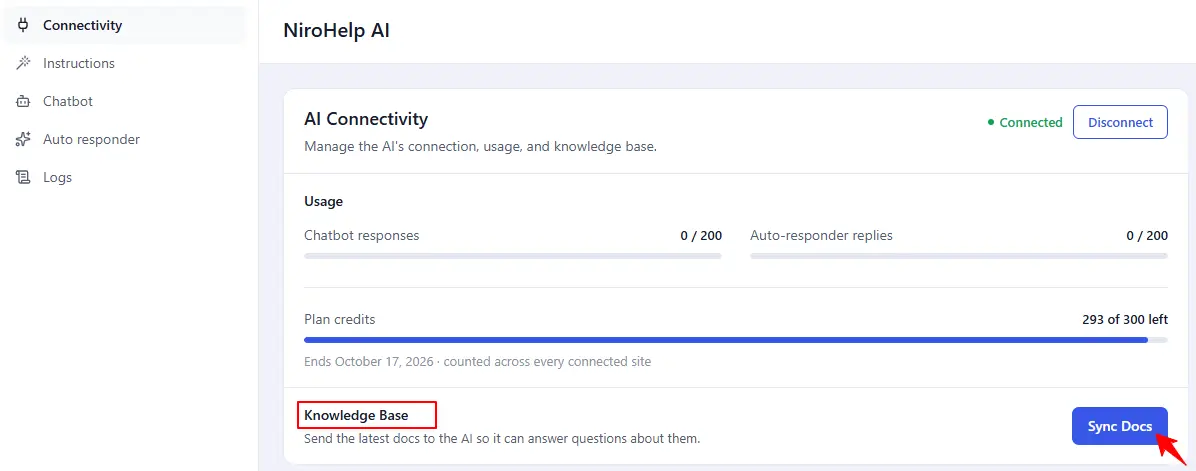
A fresh registration starts with an empty index. Click Sync Docs in the Knowledge Base row to feed your documentation again. There is no way to carry the previous index over – it belonged to the old key.
When not to disconnect
Changing the agent name, the colour or any other chatbot setting needs no disconnect at all. Edit the fields on NiroHelp → AI → Chatbot and re-copy or re-download the snippet. Disconnecting is for revoking the key, nothing else.
Was this doc helpful?