

When a client files a ticket, NiroHelp can hand it to an agent so it does not sit unowned. Configure it under NiroHelp → Settings → Tickets → Agent assignment.
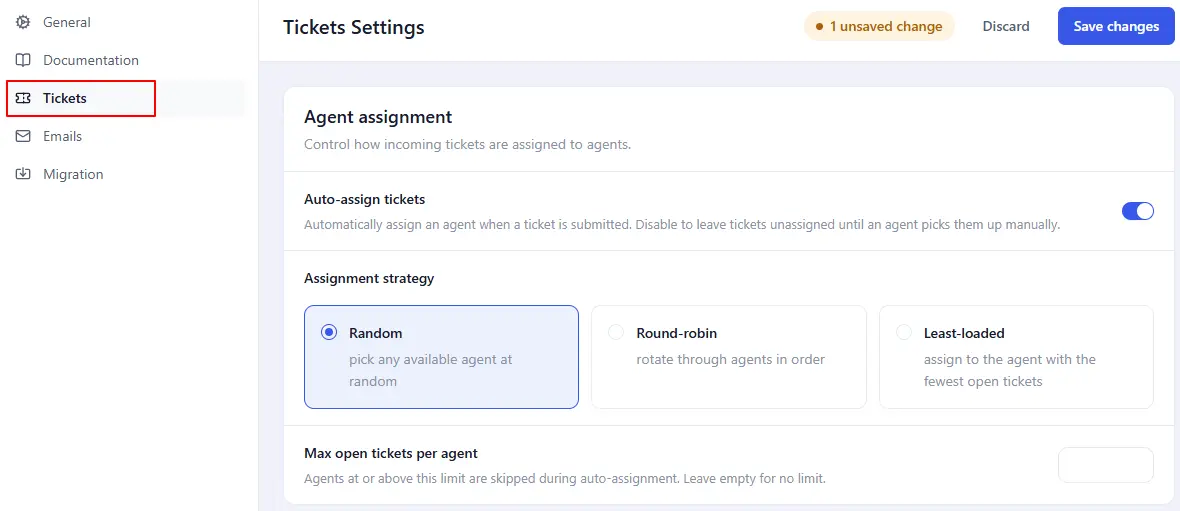
Turning it on
Auto-assign tickets is on by default. With it off, every new ticket is left unassigned.
Only users holding the NiroHelp Agent role are candidates. An administrator who answers tickets but does not carry that role is never picked. With no agents at all, tickets stay unassigned.
The three strategies
| Strategy | How it picks |
|---|---|
| Random | Picks at random from the eligible agents. The default. |
| Round-robin | Goes down the list in order, one ticket each. Adding or removing an agent shifts the rotation, because the position counts into the current list. |
| Least-loaded | Counts each agent’s assigned tickets and picks the lowest. Ties go to whoever comes first in the list. |
Max open tickets per agent
Set a cap under Max open tickets per agent. Leave it empty, or set it to 0, for no cap. When it is set, agents at or above the cap are skipped; if that leaves nobody, the ticket goes unassigned.
Read this before you set a cap. The count is not limited to open tickets, despite the label. Resolved, closed and cancelled tickets are counted too, so in practice the cap behaves as a lifetime total per agent – an agent who has handled a lot of tickets is excluded even with an empty queue.
Until that changes, treat both the cap and the least-loaded strategy as “total tickets ever assigned”, and size the cap accordingly or leave it empty.
When the pick happens
Exactly once, when the ticket is created. Later replies, status changes and edits never re-pick. If nobody is eligible, the ticket simply shows as unassigned.
Reassigning a ticket
Auto-assignment is a starting point, not a decision. Reassign through the Assigned agent dropdown in the Ticket details box on the ticket editor.
WordPress’s Quick Edit does not offer the agent field.
When there are no agents
Tickets show No agent assigned in the Agent column. They are still searchable, readable and answerable, and you can assign them later. The “New ticket – to agent” email is skipped, because there is nobody to send it to.
Seeing the load
NiroHelp → Agents lists every agent with their open ticket count, total assigned, and an At capacity badge when they have hit the limit. The View tickets link beside each one filters the ticket list to that agent – it is the only per-agent filter there is.
The dashboard shows the same load alongside each agent’s median first-reply and resolve times.
Smarter routing
Routing by product, by working hours or by timezone is not built in, and there is no setting for it. It is a small piece of custom work – see the Developers section.
Was this doc helpful?