

The chatbot is one small piece of code you paste into a website. It works on any site – WordPress, plain HTML, anything and the widget appears in the corner by itself.
Get your snippet
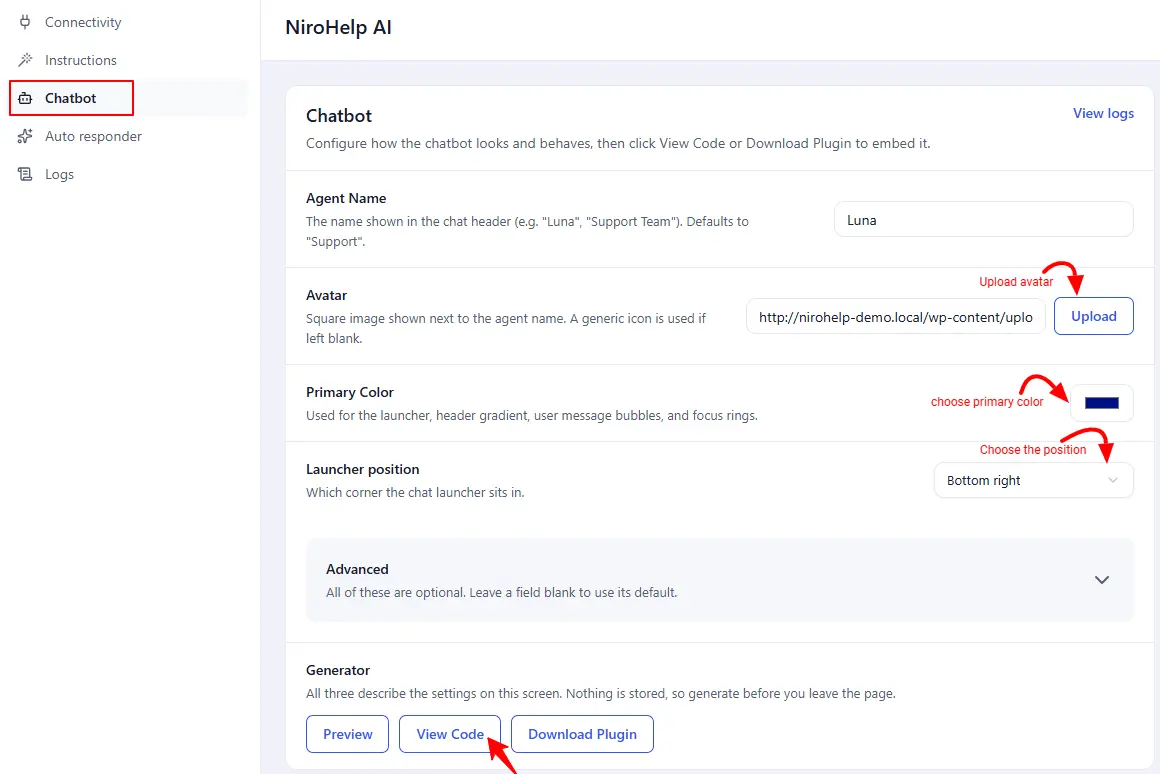
1. Go to NiroHelp → AI → Chatbot.
2. Set the Agent name, Avatar, Primary colour and Launcher position, plus anything under Advanced. See Customizing the chatbot.
3. Click View Code. A dialog shows your snippet, already filled in with your site key and your settings.
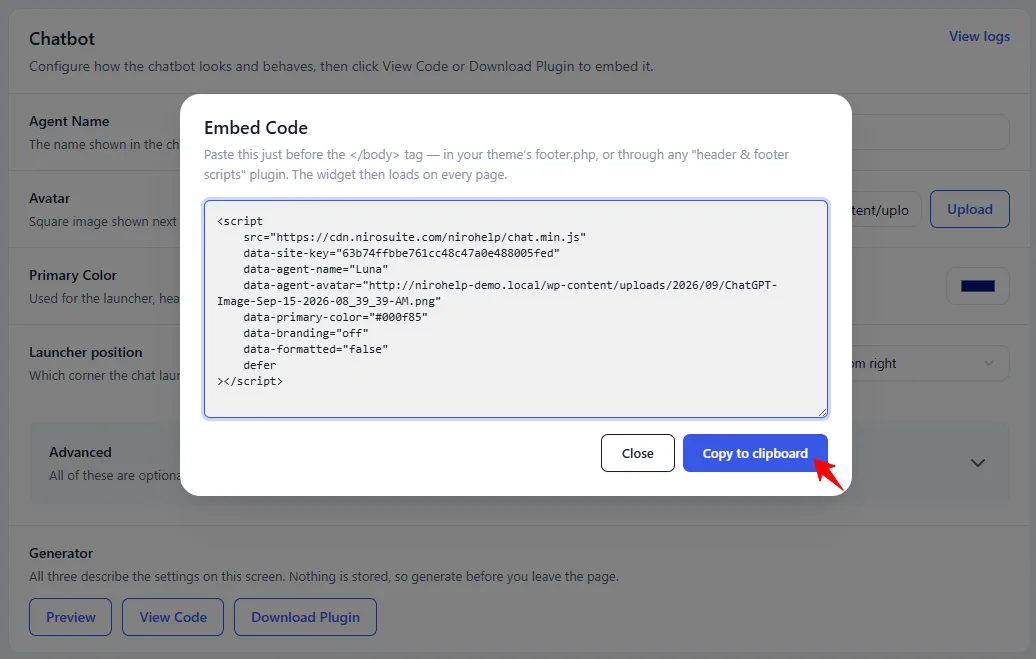
4. Click Copy to clipboard.
Paste it into the site
The snippet goes just before the closing </body> tag. Three common ways:
- Your WordPress theme: paste it into
footer.phpjust before</body>. Use a child theme so a theme update does not wipe it. - A header-and-footer scripts plugin – Insert Headers and Footers, WPCode and the like: paste it into the Body section.
- A site that is not WordPress: paste it into the page template just before
</body>.
The easier route for a customer’s WordPress site
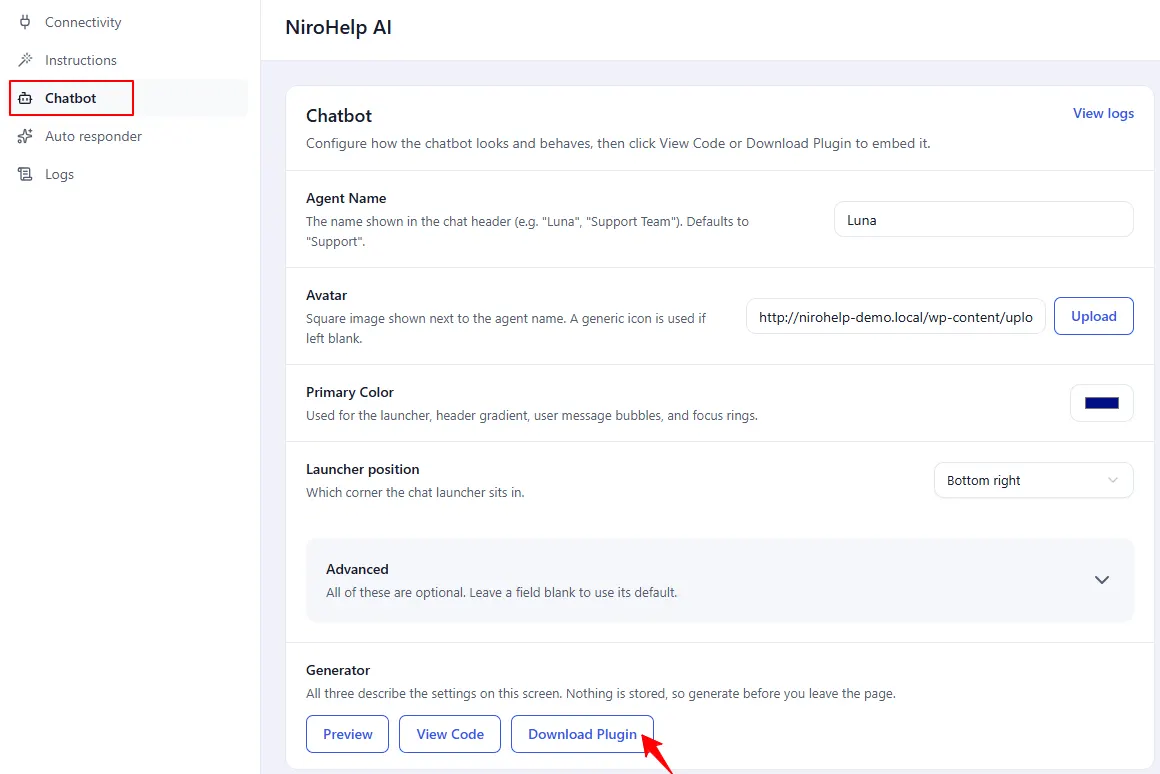
The Download Plugin button on the same screen wraps your snippet into a tiny WordPress plugin. Your customer installs and activates it like any other plugin and the chatbot appears – they never touch theme files. See The Download Plugin shortcut.
Check it before you ship it
Click Preview to see the widget running on the Chatbot screen itself, using whatever is currently in the form. Preview, View Code and Download Plugin are all built the same way, so what you preview is what you get. Click again after a change and it refreshes immediately no save, paste and reload loop.
What the visitor sees
A round chat button in the corner in your primary colour. Clicking it slides up the chat panel. The first message is your welcome line, with your suggested questions above the input if you set any. The visitor types a question and the answer arrives in the panel.
The conversation is kept only for that browser tab. Closing the tab clears it – see Where chatbot conversations are kept.
About the site key in the snippet
The snippet carries your site key, and that is fine – it is a public key, in the same way a Google Maps key is public. Anyone can read it out of your page.
If it is ever abused, click Disconnect on NiroHelp → AI and register again. The old key stops working immediately, and you paste a fresh snippet.
Was this doc helpful?