

Writing a doc is exactly like writing a post or a page: the same editor, the same media library, the same revisions.
The Docs screens are available to administrators and editors. If someone with a NiroHelp role cannot see them, read Roles and permissions.
Add a new doc
1. Go to NiroHelp → Docs → Add New.
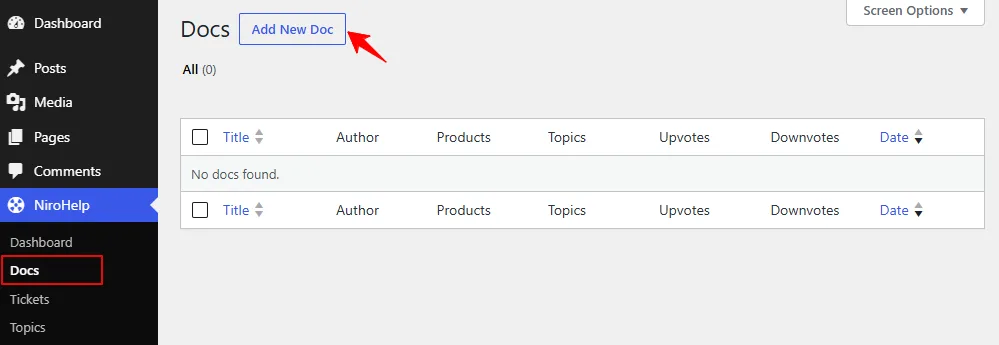
2. Enter a title. The slug comes from it and becomes the last part of the address.
3. Write the body. The block editor and the classic editor both work – see Code blocks and images for the two places they behave differently.
4. Pick one or more Topics in the sidebar. Topics are the chapters of your knowledge base.
5. Optionally pick a Product, if you cover several product lines.
6. Set a Featured Image for the thumbnail in the archive.
7. Publish.
Drafts and revisions
Docs are ordinary WordPress content, so you get Save Draft, scheduled publishing, Preview and the full revision history.
Only published docs are sent to the AI when you sync, and views are not counted on previews or for anyone who can edit the doc – so drafting never distorts your dashboard figures.
Putting docs in order
Docs appear in the order you set, not alphabetically, and that order applies everywhere: the archive, the topic listings, and the previous/next links at the bottom of a doc.
You set it by dragging rows on NiroHelp → Docs. Drop a row in its new place and the order is saved for you. Topics are reordered the same way on NiroHelp → Topics.
Two things to know:
- There is no numeric Order column to type into. The two NiroHelp columns on the doc list are Upvotes and Downvotes, and neither sorts when you click its heading.
- Dragging only reorders what is on screen. Set the per-page count high enough to see the whole topic before you rearrange it.
Where the doc shows up
- On the docs archive — the page hosting the docs shortcode, grouped by topic.
- At its own address, built from the structure you picked under Settings → Documentation → Permalinks. See Doc URLs.
- In the AI knowledge base, but only after you click Sync Docs on NiroHelp → AI. Until you do, the chatbot and auto responder keep answering from the previous sync. See Syncing docs to the AI.
There is no topic archive page. Opening a topic or product address does not list that topic’s docs – it sends the visitor to the first doc in the topic instead. If you want a browsable listing, that is what the archive page and its topic grouping are for.
Caching
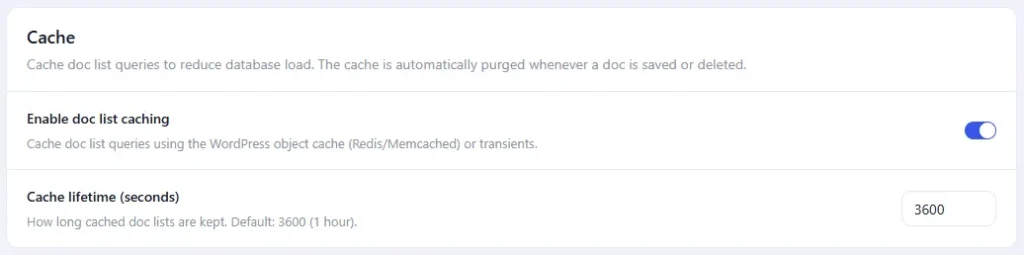
Doc lists are cached for an hour by default, controlled under Settings → Documentation → Cache. The cache clears itself whenever a doc is saved or deleted, so a published edit shows straight away. If a listing ever looks stale, saving any doc refreshes it.
Was this doc helpful?