

NiroHelp adds three WordPress roles when you activate it:
| Role | Intended for |
|---|---|
| NiroHelp Manager | Someone who runs the knowledge base and the ticket queue. |
| NiroHelp Agent | Someone who answers tickets and nothing else. |
| NiroHelp User | The client. Files tickets and reads their own conversation. |
Standard WordPress Administrator users keep full access to everything.
Assigning a role
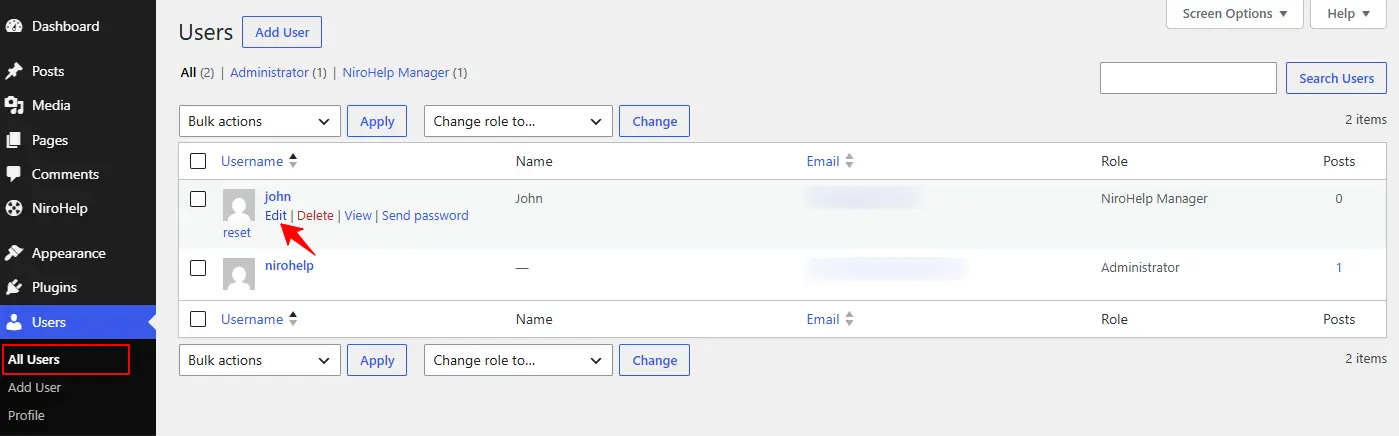
1. Go to Users → All Users.
2. Edit the user.
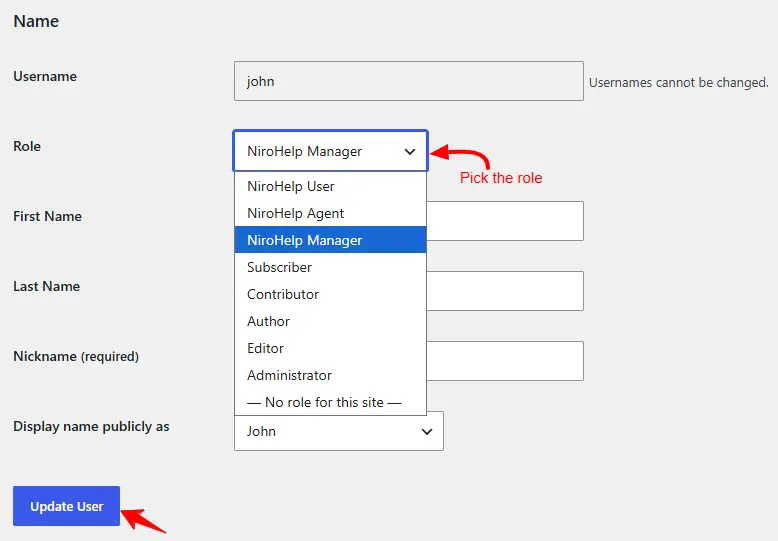
3. Pick the NiroHelp role from the Role dropdown, or use a multi-role plugin to add it on top of an existing role.
4. Click Update User.
Clients who submit a ticket from the front end are given the NiroHelp User role automatically when their account is created, so you never assign that one by hand. Account creation has to be allowed first — see Account creation below.
What each role can reach in wp-admin today
This is narrower than the role names suggest, and it is worth reading before you hand someone a role and expect them to get to work.
| Screen | Administrator | Manager | Agent | User |
|---|---|---|---|---|
| NiroHelp → Dashboard | yes | no | no | no |
| NiroHelp → AI | yes | no | no | no |
| NiroHelp → Settings | yes | no | no | no |
| NiroHelp → Agents | yes | no | no | no |
| Docs list and editor | yes | no | no | no |
| Tickets list and editor | yes | no | no | no |
| Topics / Reasons / Products | yes | yes | no | no |
In practice:
- Administrator sees the whole menu.
- Manager sees a NiroHelp menu containing only Topics, Reasons and Products. WordPress promotes the first screen they can reach to be the top-level link, so the menu appears but does not open the dashboard.
- Agent and User see no NiroHelp menu at all.
Manager and Agent are not locked out of the work, only out of the list screens. A manager can save a doc and an agent can save a ticket when they reach the editor directly — from a link, for instance. It is the list screen behind the menu that they cannot open.
If you need a manager or an agent working inside wp-admin today, give them an Editor or Administrator account, or ask a developer to add the missing capabilities to the role. The recipe is in the Developers section.
Where the roles work as intended
Anything that goes through NiroHelp’s own permission checks — the public pages, the ticket forms, the front-end queue — behaves the way the role names suggest:
- A Manager can create and edit docs, and edit or delete any ticket.
- An Agent can read and reply to any ticket, but not delete one and not touch docs.
- A User can read and reply to their own tickets only.
- Settings, the dashboard, the AI screens and migration are administrator-only.
That is why a client with no admin access can still read and answer their own ticket from the front end.
What a client account can do
The NiroHelp User role is deliberately the smallest useful set of permissions: read the site, file a ticket, edit their own ticket, read their own ticket.
Uploading files is switched off and should stay off. It is the role handed to anyone who signs up from the public form, and enabling it would give them a writable media library. There is no client-side attachment upload. Attachments that appear on migrated tickets came in through the importer, not from clients.
Account creation
Every public path that would create a WordPress account is gated. An account is only ever created when one of these is true:
- WordPress’s own Settings → General → Anyone can register is on, or
- NiroHelp → Settings → Tickets → Submission → Create accounts for new clients is ticked.
With both off, a visitor whose email matches no account is told that no account was found, rather than having one made for them silently.
One thing not to change
Do not rename the role slugs in code. WordPress stores them against every user, so renaming them leaves your existing managers, agents and clients without access until those user records are migrated too.
Was this doc helpful?