

Everything about the widget is set on NiroHelp → AI → Chatbot. This page walks through every field, what it does, and what the visitor sees when you leave it alone.
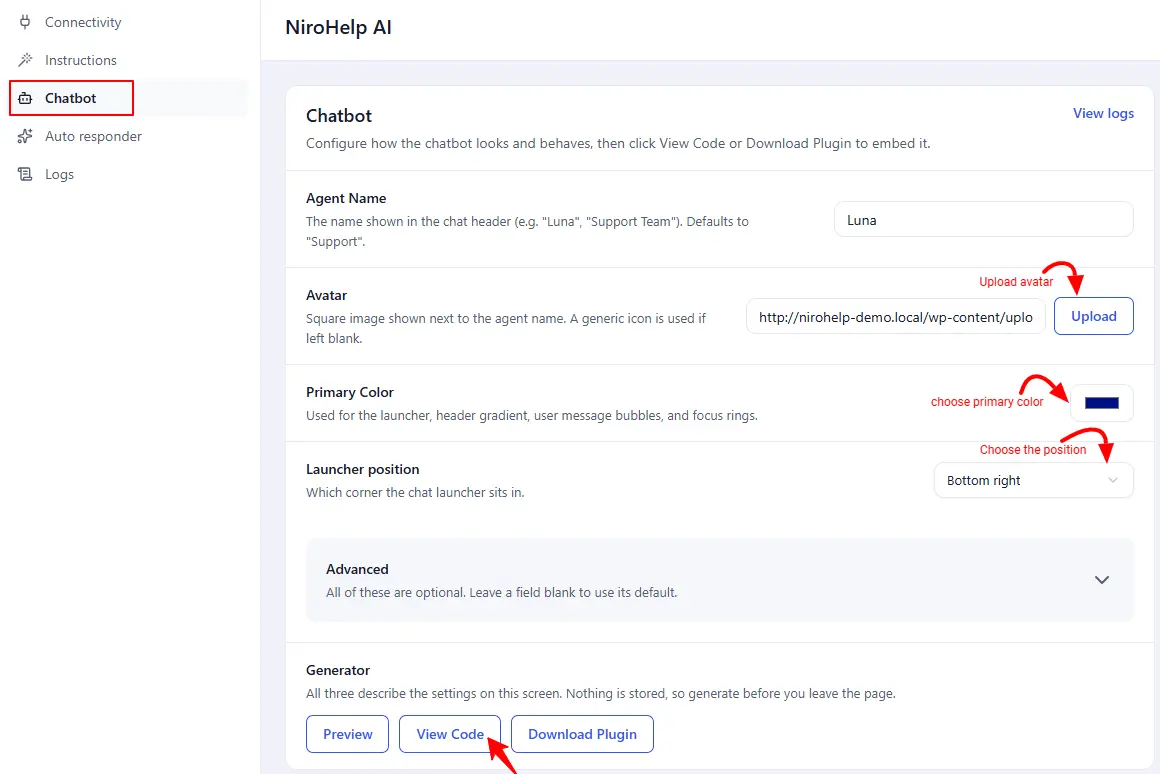
Click Preview at any point to see the result without saving.
The main fields
| Field | Default if you leave it blank | What it does |
|---|---|---|
| Agent name | Support | The name in the chat header. |
| Avatar | none | A square image beside the name. Pick it from your media library. |
| Primary colour | a blue | The launcher button, the header, the visitor’s own messages and the focus outlines. |
| Launcher position | bottom right | Which corner the button sits in. |
Advanced → Messages and prompts
| Field | Default if blank | What it does |
|---|---|---|
| Welcome message | Hi! I’m {agent name}. How can I help you today? | The first message when the panel opens. |
| Suggested prompts | none | Starter questions shown as chips. They disappear after the visitor’s first message. |
| Input placeholder | Type a message… | Hint text inside the message box. |
| Launcher label | none | Short text beside the launcher button. Blank means no label. |
Advanced → Panel and behaviour
| Field | Default | What it does |
|---|---|---|
| Panel width | 400px | Kept between 280 and 800, and never wider than the visitor’s screen. |
| Panel height | 620px | Kept between 360 and 900. The panel goes full-screen on phones regardless. |
| Auto-open | off | Whether the panel opens by itself: after a delay, at a scroll depth, or when the cursor leaves the top of the page. |
| Auto-open value | — | Seconds for the delay option, a percentage for the scroll option. |
Auto-open fires at most once per visit, so visitors are not prompted again on every page.
Advanced → Where it appears
Two fields, both taking a comma-separated list of paths. * matches anything.
Show on:  /docs/*, /pricing        only on the docs and pricing pages
Hide on:  /checkout/*, /admin/*    everywhere except those
Leave Show on blank for every page. Hide wins when a path matches both.
Only the path is matched – anything after a ? or a # is ignored.
Advanced → Business hours
| Field | Default | What it does |
|---|---|---|
| Business hours | always available | When the bot is presented as available. |
| Offline message | We’re currently offline… | The greeting outside those hours. |
| Offline mode | Message | Message shows a greyed-out status and the offline greeting; Hide removes the launcher entirely. |
Write hours like this:
mon-fri:9-17                weekday office hours
mon-fri:9-17, sat:10-14     extended Saturdays
sun-sat:0-24                the same as leaving it blank
Two rules worth knowing:
- Hours are read in the visitor’s own local time, not yours.
- The end hour is exclusive, so
9-17means 09:00 to 16:59. - Day ranges wrap around:
fri-monmeans Friday, Saturday, Sunday and Monday.
Advanced → Support and privacy
| Field | Default | What it does |
|---|---|---|
| Support email | none | Offered to the visitor when the bot cannot answer. |
| Ticket form link | none | Same purpose — a link to where they can file a ticket. |
| Powered by NiroHelp | shown | Untick to hide the footer line. |
“Collect lead” does nothing today. The checkbox is on the screen and the setting is saved, but the widget currently ignores it. Do not rely on it.
Turning it off without losing your settings
Set Show on to a path that never matches – /never-match-this-path – or remove the snippet from the site. Your configuration is kept either way.
If you write your own snippet
Everything above is expressed as attributes on the snippet, and the plugin leaves out anything still at its default – which is why your snippet is short. If you generate snippets from your own tooling, keep the same size limits: a panel wider than the phone it opens on is a broken page, not a preference.
Was this doc helpful?