

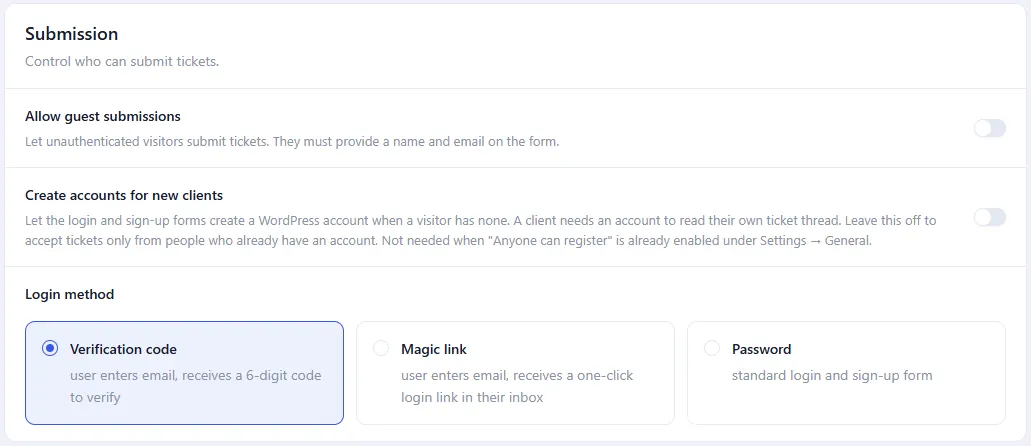
Clients reach their tickets through one of three login methods. Pick yours under NiroHelp → Settings → Tickets → Submission → Login method.
Two are passwordless; the third is a normal WordPress login.
| Method | What the client does |
|---|---|
| Verification code (default) | Enters their email, receives a 6-digit code, types it in. |
| Magic link | Enters their email, clicks a one-click link in their inbox. |
| Password | Signs in, or signs up, with an email and password. |
All three end in the same place: the client is signed in as a WordPress user holding the NiroHelp User role.
Verification code
- The client opens Submit a Ticket or My Tickets.
- Logged out, the page asks for their email.
- They submit it and NiroHelp emails them a 6-digit code.
- The code is valid for 5 minutes.
- They type it in and are signed in.
Wrong codes are counted. After 5 failed attempts the code is thrown away and the client has to request a new one.
Magic link
- Same first two steps.
- Submitting the email sends them a one-click login link.
- Clicking it signs them in and drops them back where they started. There is no code to type.
Password
The form shows email and password fields, plus a sign-up panel. The sign-up panel only appears when account creation is allowed — see below.
This method runs through WordPress’s own login machinery, so anything you have protecting wp-login.php — brute-force limiters, two-factor plugins, lockouts – applies here too.
Login links inside emails
Whichever method you choose, every notification email that sends a client back
to their ticket carries a one-click login link. Clicking it signs the client
in and takes them straight to the conversation.
These links are single-use and short-lived, so a forwarded email stops working quickly.
Account creation
A visitor whose email matches no existing account can only get in when account creation is allowed. That means one of these is on:
- WordPress’s Settings → General → Anyone can register, or
- NiroHelp → Settings → Tickets → Submission → Create accounts for new clients.
With both off, the form answers “No account found for this email address.” and sends nothing – a code or link is never mailed for an account that cannot
be created.
When an account is created, the client’s email becomes both their username and their email address, they get the NiroHelp User role, and their display name comes from the name field if the form asked for one.
Customizing the login emails
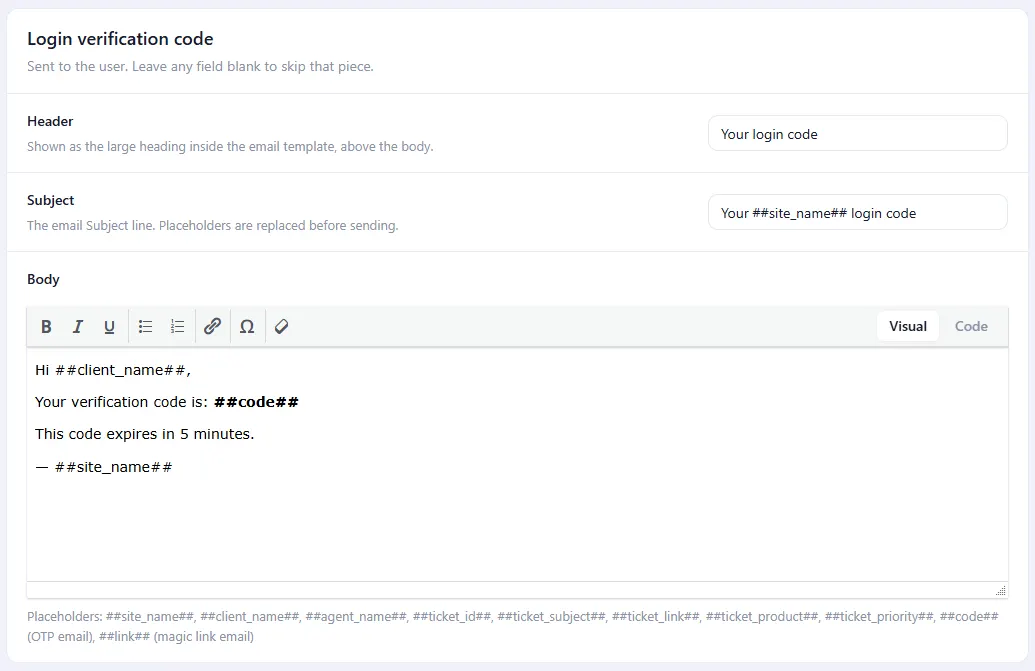
Both passwordless emails are edited under NiroHelp → Settings → Emails:
| Extra placeholder it accepts | |
|---|---|
| Login verification code | ##code## |
| Magic link login | ##link## |
##site_name## works in both. See Notification emails.
Why passwordless is the default
Most “I forgot my password” messages are not support requests. Passwordless login removes the category entirely: clients always have access through their email, and agents never handle a credential reset. The password method exists for sites that already have client accounts and would rather not change how people sign in.
Was this doc helpful?