

The new-ticket form is not fixed. You can rename, reorder, require, switch off or add fields without touching any code.
Configure it under NiroHelp → Settings → Tickets → Form fields.
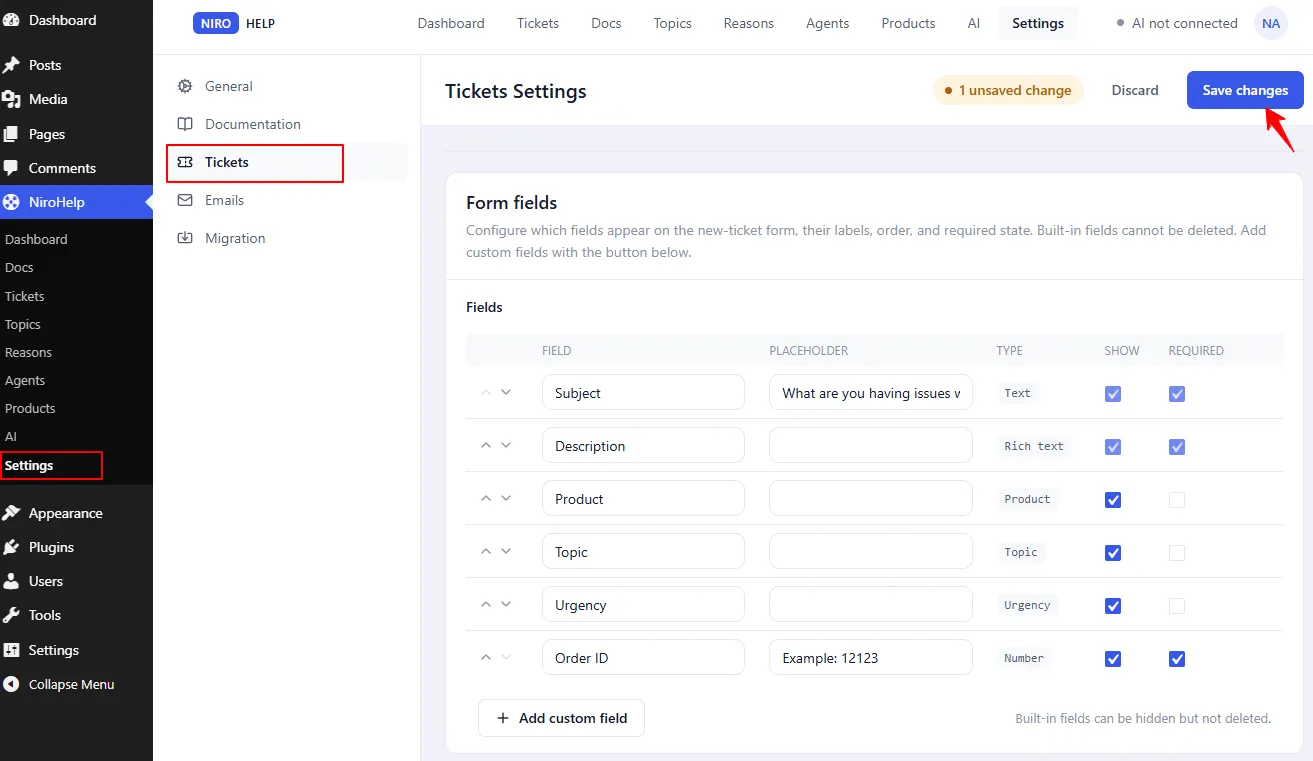
Each field is one row, and each row has these columns:
| Column | What it does |
|---|---|
| Enabled | Unticking it removes the field from the form entirely. |
| Required | Marks the field required. |
| Label | What the client sees. Change it freely. |
| Placeholder | Hint text inside the box. |
| Type | A badge for built-in fields, because their type is fixed. A dropdown for your own fields. |
| Options | For dropdown fields only. One choice per line. |
The six built-in fields
| Field | Default label | Type | Required by default |
|---|---|---|---|
| Subject | Subject | text | yes |
| Description | Description | rich text | yes |
| Product | Product | product picker | no |
| Reason | Topic | reason picker | no |
| Urgency | Urgency | urgency picker | no |
| Order | Order | text | no |
Two things worth noting:
- The reason field’s default label is “Topic”. The list itself is called Reasons. Rename the label here if that confuses your clients – the two are separate.
- Subject and Description are always on and always required, whatever the checkboxes say. They become the ticket’s title and body, and a ticket cannot exist without them.
The other four built-ins can be switched off. Their type cannot change – the badge is telling you a fact, not hiding an input.
Adding your own fields
Add a row and pick a type: text, number, email, long text or dropdown.
For a dropdown, fill Options with one choice per line, written as value:Label:
refund:Refund request
billing:Billing question
other:Something else
The part before the colon is stored; the part after it is what the client sees. Three things to expect from custom fields:
- Switching a field off stops new answers being stored but leaves everything already collected untouched.
- Deleting a row does not delete past answers. They stay on the tickets that already have them.
- Custom fields do not appear in the ticket editor’s details box, which shows only agent, urgency and order. Reading them back needs a developer, or a plugin that displays custom fields.
The embeddable form is different
The embeddable form – the one you can put on another website entirely – has its own fixed list of fields and ignores everything on this screen. Custom fields and switched-off built-ins do not reach it. See the Developers section.
Was this doc helpful?