

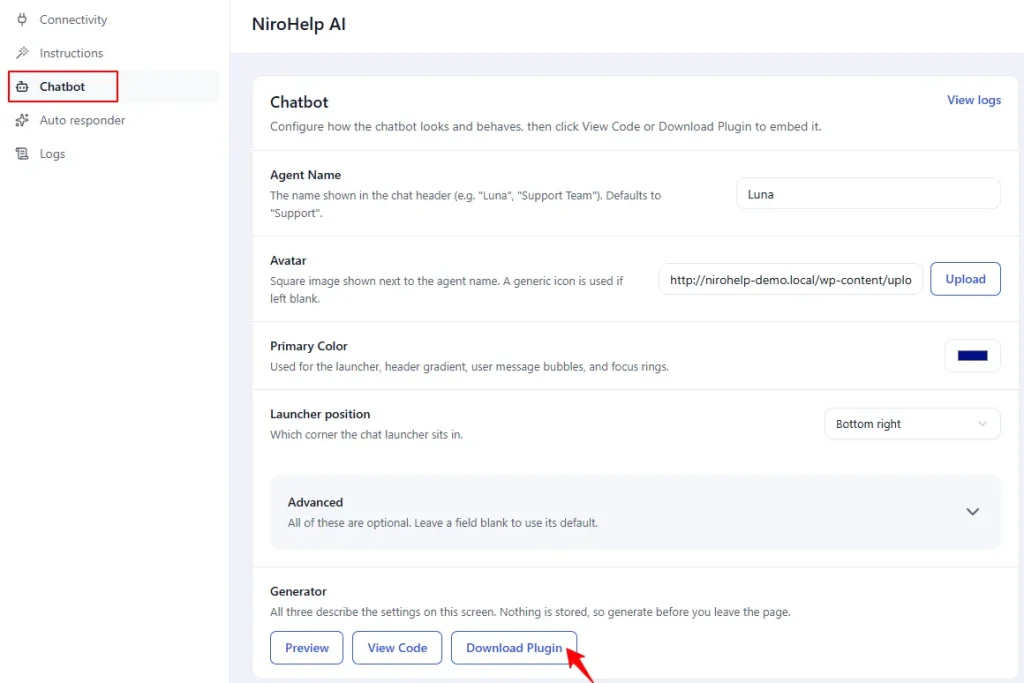
The Download Plugin button under NiroHelp → AI → Chatbot wraps your chatbot snippet into a tiny WordPress plugin. This is the easiest way to get the chatbot onto a customer’s site – they never edit a theme file or paste code.
What you get
Clicking the button downloads nirohelp-chatbot.zip. Inside is one small plugin whose only job is to add your chatbot to the footer of every page.
Your current settings are baked in at the moment you click. What you get matches what is on screen, saved or not. Change something later and you re-download.
Installing it on a customer site
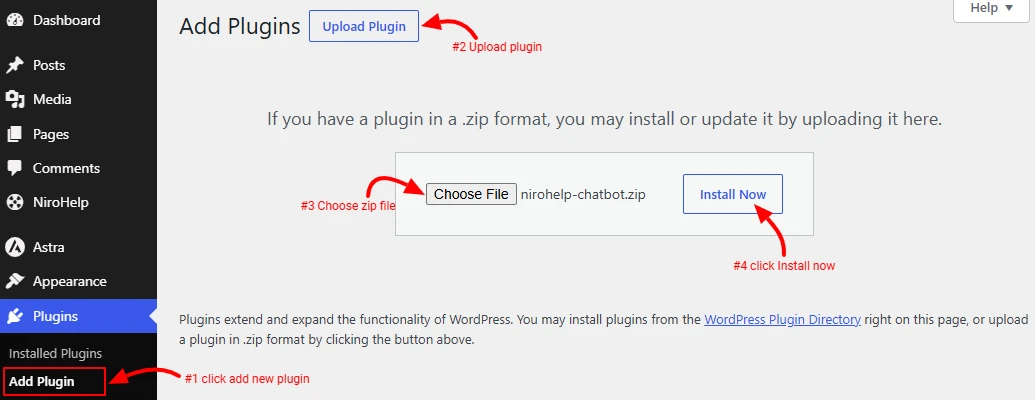
1. In the customer’s WordPress admin, go to Plugins → Add New → Upload Plugin
2. Pick the nirohelp-chatbot.zip file.
3. Click Install Now
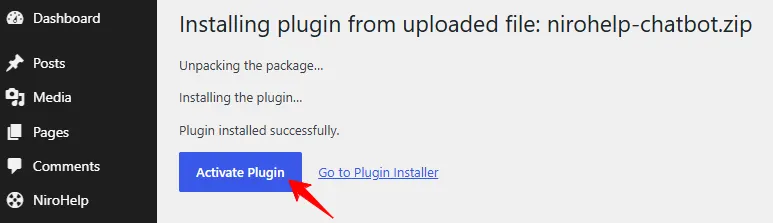
4. Then, Click Activate.
The chat launcher appears in the corner on every page. There is nothing else to configure – the plugin has no settings screen of its own.
Updating it later
There is no auto-update. To change the agent name, colour, business hours or anything else on a site that already has it:
- Change the fields on your NiroHelp → AI → Chatbot screen.
- Re-download the zip.
- On the customer’s site, deactivate and delete the old plugin, then upload the new one.
This or the plain snippet?
- Use the plugin when a non-technical site owner has to install it themselves and you would rather they did not touch theme files.
- Paste the snippet when you or your developer already manage the site’s footer, or when the site is not WordPress.
Both produce exactly the same widget.
Was this doc helpful?