

NiroHelp includes built-in importers for the most common WordPress knowledge-base and helpdesk plugins. Migrations are batched, resumable, and safe to run more than once.
Supported sources
Seven importers, in two groups.
Knowledge base
| Source | What comes across |
|---|---|
| BetterDocs | Articles and categories, as docs and topics. |
| weDocs | Container pages become topics; the pages beneath them become docs. |
| Echo Knowledge Base | Every knowledge base — articles and categories — as docs and topics. |
| BasePress | Articles and categories, as docs and topics. |
Tickets
| Source | What comes across |
|---|---|
| Awesome Support | Tickets, replies, attachments, products and departments. |
| SupportCandy | Tickets, conversations, customers, agent assignments, categories, priorities, tags, custom fields and attachments. |
| JS Help Desk | Tickets, replies, departments, products, priorities, custom fields and attachments. |
Running a migration
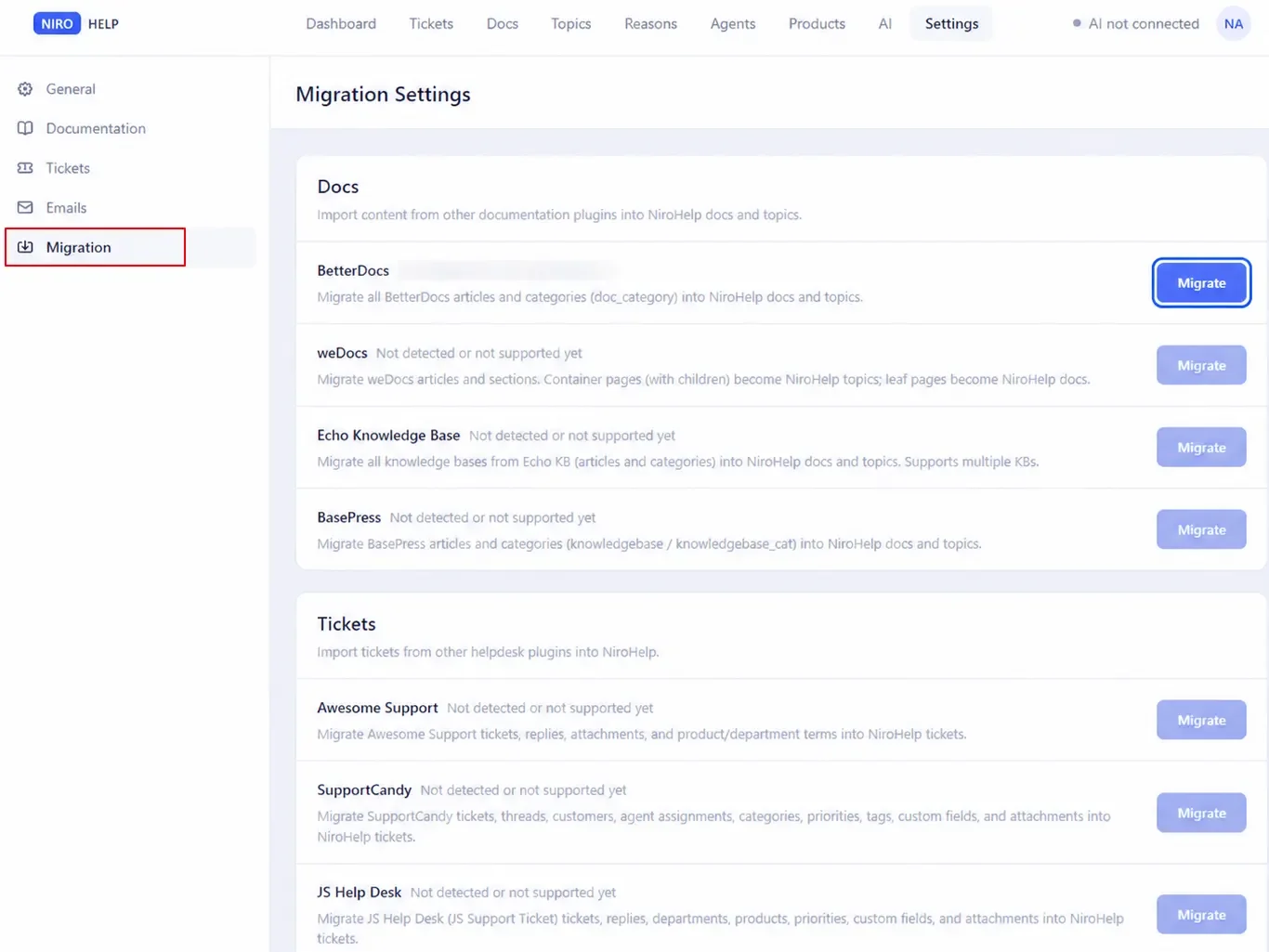
- Leave the old plugin installed and active. The importer reads its data directly, so it has to be there. Every source is listed whether or not it is available – an unavailable one is greyed out rather than hidden, so you can see the importer exists before installing anything.
- Go to NiroHelp → Settings → Migration.
- Find your source in the grid and click Migrate.
- Watch the progress summary.
Each batch handles a small number of items and then hands back control, so a long migration does not time out. You can close the page and come back – progress is saved on the server, not in your browser, and the run picks up where it left off.
The screen shows the importer’s own status wording. If a run has stalled, it will say so rather than rounding up to “finished”.
It is safe to run twice
Every imported item is marked as having come from that source, and re-running skips anything already brought across. Migrating twice never creates duplicates, which makes it practical to migrate periodically while you transition.
Undoing a migration
Each source has a Clean Up button beside Migrate. It deletes every NiroHelp doc or ticket that came from that source.
Your original content is untouched — your BetterDocs articles, your Awesome Support tickets and so on all stay exactly where they are.
What maps to what
| From the old plugin | Becomes in NiroHelp |
|---|---|
| Article title and body | The doc’s title and body |
| Category or section | A Topic |
| Featured image | The doc’s featured image |
| Ticket | A Ticket |
| Reply or conversation entry | A message in the ticket conversation |
| Attachment | An attachment on the ticket |
| Product, department or category | A Product or a Reason |
| Priority | The ticket’s Urgency |
| Agent assignment | The Assigned agent |
| Custom fields | Kept on the ticket |
Tags are left in the source and are not migrated.
Migrated ticket attachments are not the same as clients being able to upload files. Client uploads are switched off by design – see Roles and permissions.
Two things to do afterwards
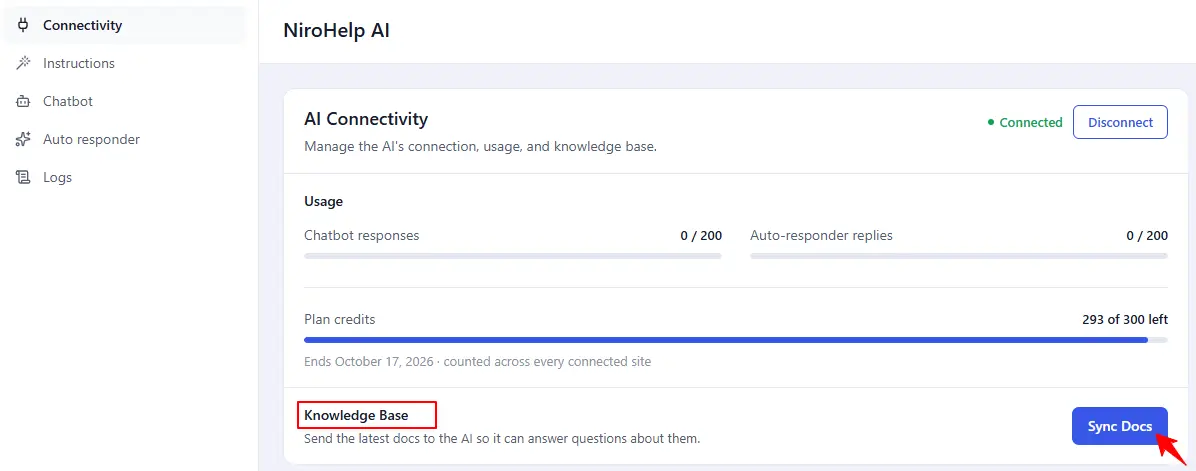
1. Click Sync Docs on NiroHelp → AI, if you use the AI features. Your newly imported docs are not in the AI’s knowledge base until you do. See Syncing docs to the AI.
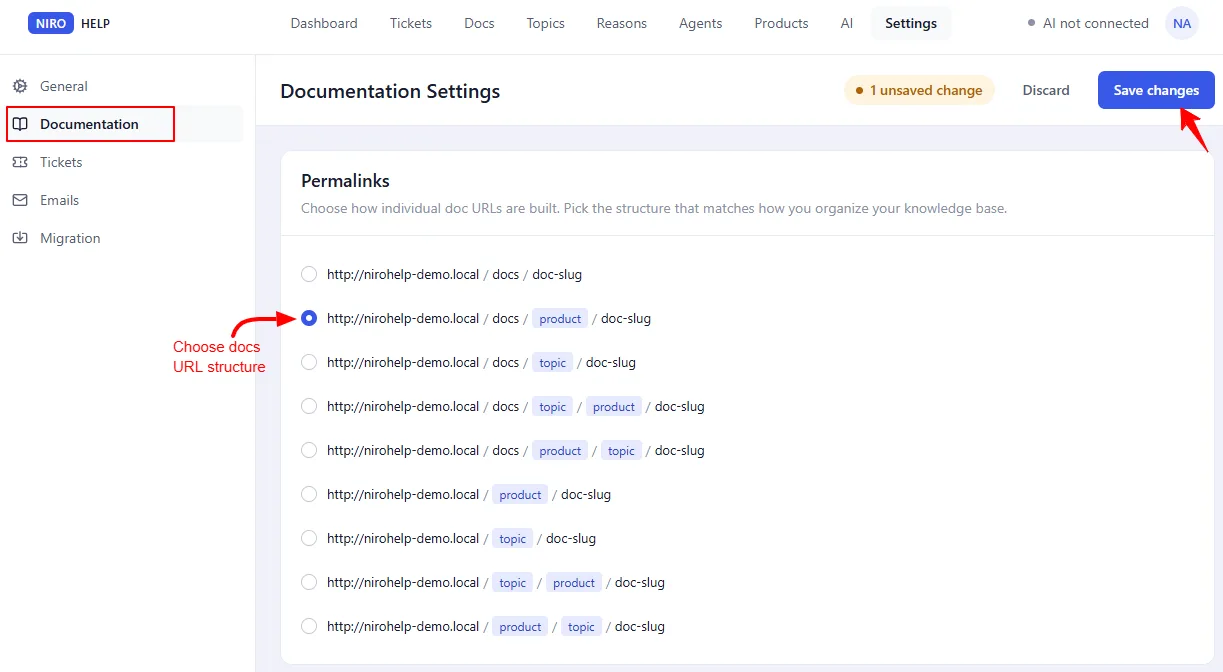
2. Check your addresses. If the old plugin used a different URL structure, pick the right one under Settings → Documentation → Permalinks and set up redirects from the old addresses with any redirection plugin. See Doc URLs.
Was this doc helpful?