

NiroHelp is a standard WordPress plugin. There is nothing to register, no key is needed to activate it, and nothing is sent anywhere when you switch it on.
Requirements
- WordPress 6.0 or newer
- PHP 7.4 or newer
- A WordPress site you can install plugins on – any host, any theme
The optional AI features (chatbot, auto responder, doc sync) connect to the NiroHelp AI service and need a one-time site registration. Everything else –
docs, tickets, emails, migration – works with no connection at all.
Install from a ZIP
1. In WordPress admin, go to Plugins → Add New → Upload Plugin.
2. Pick the nirohelp.zip file and click Install Now.
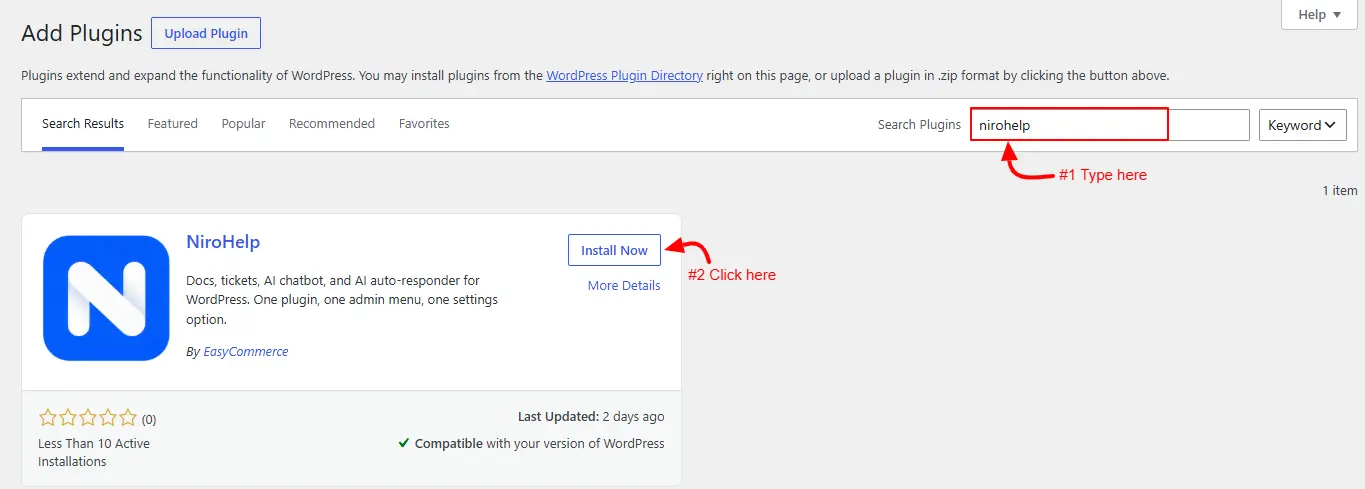
3. Click Activate Plugin when the upload finishes.
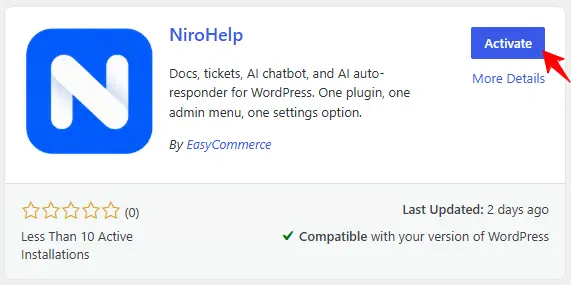
A new top-level NiroHelp menu appears in the admin sidebar.
Install manually over SFTP
- Copy the
nirohelpfolder (not the zip itself) into your site’s plugins folder. - Go to Plugins in WordPress admin.
- Find NiroHelp in the list and click Activate.
What activation sets up
Activating NiroHelp adds:
- Docs and Tickets, two new content types with their own admin screens.
- Topics (for docs), Reasons (for tickets) and Products (shared by both).
- Eight ticket statuses.
- Three new user roles – NiroHelp Manager, NiroHelp Agent and NiroHelp User.
It also creates three pages for the public side of the site and selects them in settings. The next guide walks through them.
No new database tables are created. Docs and tickets are stored as ordinary WordPress content, ticket conversations as comments, and clients as WordPress users. That means your usual backup covers NiroHelp with no extra step.
What happens if you delete the plugin
Deleting NiroHelp through Plugins → Delete removes almost nothing.
Your docs, tickets, conversations, topics, reasons, products, roles, client accounts and all your settings survive a delete and reinstall. That is deliberate – an accidental deactivation should never destroy a support history.
The flip side is that uninstalling is not a way to reset the plugin. To start from a clean slate you have to delete the content and settings yourself.
Deactivating also stops the daily dashboard briefing from being generated. It starts again the next time you activate.
Next step
Open NiroHelp → Settings and check the public pages the installer created. That is First-run setup.
Was this doc helpful?